
Keep PDFSTOOLZ Free
If we saved you time today and found PDFSTOOLZ useful, please consider a small support.
It keeps the servers running fast for everyone.

🔒 100% Secure & Private.
Picture this: You’ve just hit send on a mortgage application or a crucial business verification request. You double-checked every number. The statement is legible. The file size is correct. You lean back, expecting an approval email within 24 hours. Instead, you get a cold, automated response: “Document Rejected – Unable to Verify.”
Panic sets in. You look at the file again. It looks perfect to the naked eye. What went wrong?
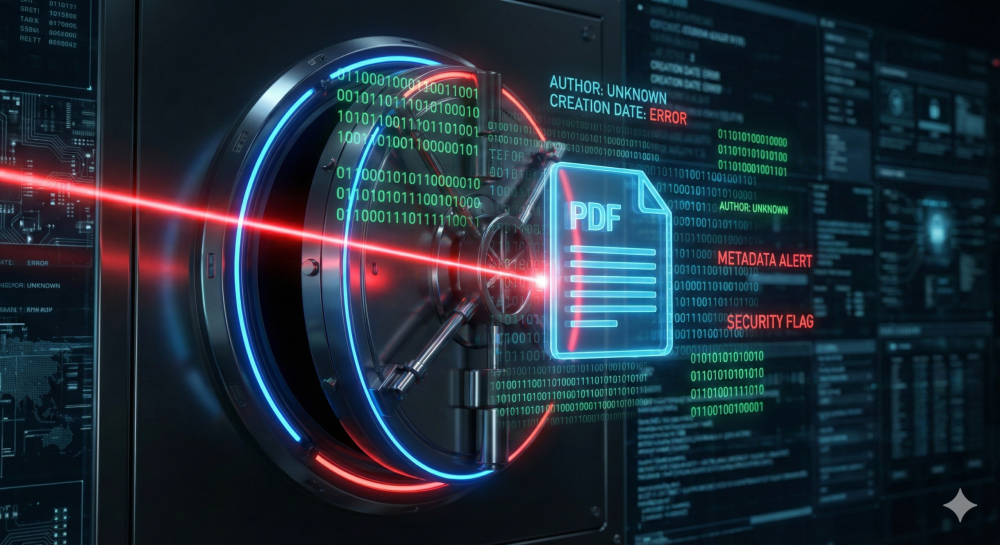
The answer likely lies in a layer of the file you can’t see on your screen: Hidden PDF metadata.
In my years working with digital document management, I’ve seen this scenario play out hundreds of times. We tend to think of a PDF as a digital sheet of paper—what you see is what you get. But to a bank’s automated fraud detection system, a PDF is a complex container of code, history, and digital fingerprints. When those fingerprints don’t match the story your document tells, the system slams the door shut.
In this guide, we are going to tear apart the digital “black box” of PDF files, explore why banks are obsessed with metadata, and show you exactly how to scrub your files clean to ensure they pass inspection every time.
The Invisible Layer: What is Metadata?
Before we dive into the banking algorithms, we need to understand what we are dealing with. Metadata is essentially “data about data.” It is the background information embedded in a file that describes its content, context, and structure.
When you open a PDF, you see text and images. When a computer opens a PDF, it sees:
- Creation Date: When the file was first born.
- Modification Date: The last time it was touched.
- Producer: The software used to generate the file (e.g., “Microsoft Word,” “Adobe Acrobat Pro,” or “Python Script”).
- Author: The user account name on the computer that created it.
This information is vital for Data Compression and organization, but it creates a massive trail of breadcrumbs.
Why Banks Care About “The Trail”
Banks and financial institutions operate under strict Know Your Customer (KYC) and Anti-Money Laundering (AML) regulations. In the past, a human loan officer would glance at your paper bank statement. Today, sophisticated AI handles the initial intake.
These systems verify authenticity by cross-referencing the visual data (what the statement says) with the metadata (what the file says).
If you submit a bank statement dated “January 2024,” but the metadata says the file was created in “June 2025” using “Photoshop,” the system flags it as a potential forgery immediately. Even if you were just legitimately converting a file, the mismatch is a red flag.
A Real-World Example: The “Edited” Utility Bill
Let me share a story about a colleague of mine, let’s call him Mark. Mark is a freelance graphic designer—a tech-savvy guy. He needed to upload a utility bill for address verification for a new business bank account.
The problem? His utility provider sent him a password-protected PDF. The bank’s upload portal didn’t accept password-protected files.
The Mistake:
Mark opened the PDF in Illustrator (because that’s what he had open), removed the password, and hit “Save.” He didn’t change a single number or letter on the bill.
The Consequence:
The bank rejected the document and temporarily froze his application review.
The Diagnosis:
When Mark saved the file from Illustrator, the metadata changed.
- Producer Tag: Changed from “Utility Company Automated System” to “Adobe Illustrator.”
- Creation Date: Reset to the current moment.
- Structure: The internal XML structure of the PDF looked like a graphic design project, not a standardized automated billing document.
To the bank’s AI, this looked exactly like someone who had forged a bill using design software. Mark had to spend three weeks on the phone with support to clear his name.
Pros and Cons of PDF Metadata
Metadata isn’t inherently evil; it serves a purpose. However, in the context of submitting official documents, it is a double-edged sword.
| Pros of Metadata | Cons of Metadata |
| Searchability: Allows systems to index files based on author or keywords. | Privacy Risks: Can reveal your name, email, or computer network path to strangers. |
| Version Control: Helps track when a document was last updated and by whom. | Rejection Triggers: Mismatches between file dates and content dates flag fraud systems. |
| Accessibility: Tagged metadata helps screen readers interpret documents for the visually impaired. | Bloated File Size: Excessive metadata and editing history can make files too large to upload. |
| Legal Proof: In some contexts, original metadata proves a document is authentic. | Software Fingerprints: Reveals exactly what software (or pirated software) was used to make the file. |
The Common Triggers: Why Your File Failed
If you are staring at a rejection email right now, it is likely due to one of these three invisible culprits.
1. The “Creation Date” Anomaly
This is the most common error. If you download a bank statement that covers the period of May 1st to May 31st, the file’s internal creation date should logically be around June 1st or 2nd.
If you open that PDF three months later, highlight a row, and save it as a new PDF, the metadata might update the “Creation Date” to today. The bank’s AI sees a statement from May that claims it was “created” in September. That logic gap suggests the document was fabricated recently rather than generated historically by the bank.
2. The “Producer” Mismatch
Legitimate bank statements are generated by automated server-side scripts. The “Application” or “PDF Producer” metadata field usually reads something like Crystal Reports, JasperReports, or a generic Ghostscript.
If the metadata lists Microsoft Word, Canva, or Adobe Photoshop, the trust score of that document plummets. Financial institutions know that banks do not design monthly statements in Photoshop.
3. The Broken Digital Signature
Many official documents now come with a Digital Signature. This is a cryptographic seal that guarantees the file hasn’t been altered.
If you try to merge pdf files—perhaps combining three months of statements into one packet—you will almost certainly break this digital signature. The moment the signature is broken, the file is technically “altered,” even if the content remains accurate. This is a common issue when users try to organize their paperwork into a single, neat file.
How to “Clean” Your PDF for Submission
So, how do you fix this? You need to ensure the document looks authentic not just to the human eye, but to the machine eye.
Strategy 1: The “Print to PDF” Method (The Flattening Technique)
This is the easiest way to strip complex metadata. When you “print” a file to PDF, you are essentially taking a digital photograph of the document and placing it on a fresh canvas.
- Open your document.
- Select Print.
- Choose “Microsoft Print to PDF” or “Save as PDF” as your printer.
- Save it as a new file.
Why this works: It creates a fresh container. The “Producer” will likely be your operating system (e.g., Microsoft Windows), which is generally acceptable as a user-saved copy, and it strips out weird editing history. However, be careful: this can sometimes lower Resolution, making text harder to read.
Strategy 2: Image Conversion (The Nuclear Option)
If a bank portal is being incredibly stubborn, the best approach is often to convert the document into an image and then back into a PDF. This process, often called “flattening,” removes all underlying code, layers, and interactive elements. It turns the document into pure pixels.
You can use a tool to convert pdf to jpg. Once you have the high-quality images, you can simply convert the jpg to pdf.
This process creates a brand new file with zero “history.” The only metadata remaining will be the timestamp of the conversion you just performed, which is consistent with you uploading a scanned document.
Strategy 3: OCR and Reconstruction
Sometimes, you have a blurry scan or a photo of a document that gets rejected because the AI can’t read the text. In this case, the metadata isn’t the problem—legibility is.
Using ocr (Optical Character Recognition) allows you to turn a flat image back into a searchable, text-based PDF. This is crucial if the bank’s system requires text-selectable documents rather than just images.
Managing Your Document Workflow
Dealing with financial documents often involves more than just metadata; it involves file management. Banks often have strict upload limits (e.g., 5MB).
If your “cleaned” file is suddenly 20MB because you converted it to high-res images, you will get rejected for file size. In this case, you must compress pdf to bring it down to an acceptable size without losing the clarity of the text.
Furthermore, if you scanned a 10-page contract but the last three pages are blank, those blank pages can sometimes confuse automated readers or just look unprofessional. You should remove pdf pages that are irrelevant before submitting.
If you have documents scattered across different formats—perhaps a contract in Word and a statement in Excel—do not upload them as a messy zip file. Most portals prefer a single format. You should convert your excel to pdf and your word to pdf before combining them.
The Future of Verification: Cybersecurity and AI
As we move toward a fully digital economy, the scrutiny on files will only increase. Cybersecurity measures are evolving to detect deep fakes and AI-generated documents.
However, there is a fine line between security and usability. Legitimate users like “Mark” the freelancer shouldn’t be penalized for using standard tools to organize their files. Until the banking algorithms get smarter at understanding context, users need to be smarter about the data they submit.
Understanding hidden PDF metadata gives you the upper hand. It allows you to troubleshoot rejections that support desks can’t explain. It reminds you that in the digital world, a document is never just a document; it is a history.
Conclusion
Getting a “Document Rejected” notification is frustrating, especially when your financial future is on the line. But now you know that the problem often isn’t what is written on the page—it’s what is written in the code.
By being aware of metadata, “producer” tags, and date discrepancies, you can ensure your files pass the AI gatekeepers. Whether you need to flatten a file, compress it, or just reorganize it, taking control of your document’s digital footprint is the key to a smooth approval process.
Don’t let invisible data block your mortgage or business loan. Check your files, clean your metadata, and hit send with confidence.
Ready to Fix Your Files?
If you have a document that is acting up, don’t guess.
- Need to combine statements? organize pdf
- File too big? compress pdf
- Need to flatten metadata? Convert pdf to jpg