
Keep PDFSTOOLZ Free
If we saved you time today and found PDFSTOOLZ useful, please consider a small support.
It keeps the servers running fast for everyone.

🔒 100% Secure & Private.
Introduction: The “Print Preview” Betrayal
Picture this scenario. You have spent the last three days agonizing over a crucial business proposal. You carefully selected the fonts, aligned the images perfectly, and formatted the headers to look sleek and professional. It looks like a masterpiece on your screen. Confident and exhausted, you hit save and email the .docx file to your biggest potential client.
Two hours later, you get a reply. It’s a screenshot.
Your heart sinks. On their screen, your beautiful proposal looks like a ransom note. The images have jumped to the wrong pages, the text is cut off, and your custom font has been replaced by a generic, ugly default. Why did this happen? Because you fell into the classic trap of the PDF vs Word debate.
This isn’t just a minor annoyance; it is a professional liability.
In the digital world, the file format you choose sends a message before the recipient even reads the first word. Sending a raw Word document can imply that the work is unfinished or, worse, that you don’t understand digital etiquette. However, simply saving everything as a PDF isn’t always the answer either.
In this comprehensive guide, we are going to dissect the PDF vs Word dilemma. We will explore the technical underpinnings of both formats, share a real-world horror story that will make you rethink your email attachments, and provide a definitive guide on when you should absolutely, positively, never send a Docx file.
The Technical DNA: What Separates PDF vs Word?
To understand why your documents break, we have to look under the hood. The fundamental difference between PDF vs Word lies in their primary purpose.
Microsoft Word is a word processor. Its job is to facilitate creation and editing. It relies on a concept called “reflowable text.” This means the content adapts to the screen size, the printer margins, and the user’s installed fonts. It is dynamic. When you open a Docx file, the computer calculates how to display it in real-time.
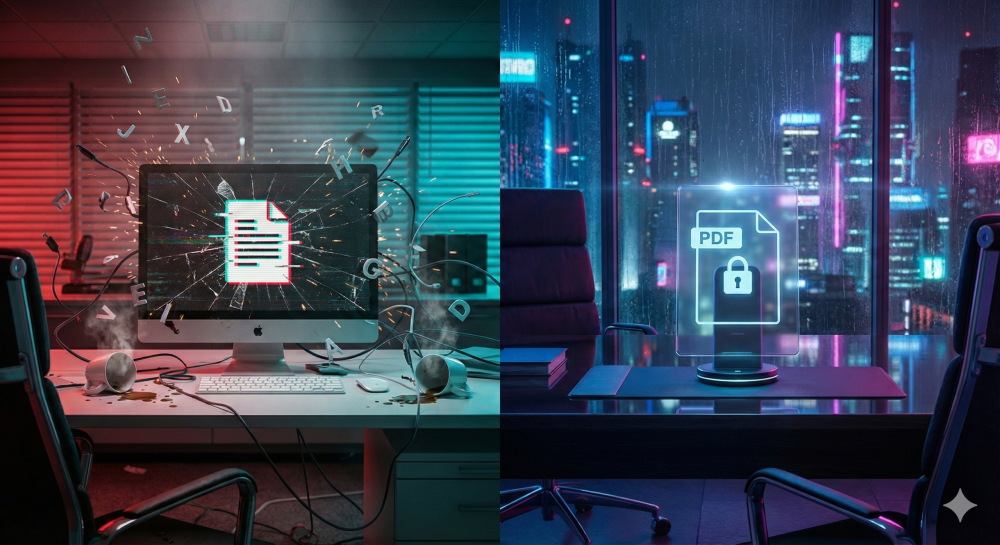
On the other hand, the Portable Document Format (PDF) is a digital container. Imagine a PDF as a high-resolution photograph of your document. It locks every pixel, letter, and image into a specific coordinate on the page. It is static.
Therefore, when we compare PDF vs Word, we are comparing a “creation tool” against a “distribution tool.”
The “Reflow” Problem
Have you ever opened a document on your phone and seen one word per line? That is reflow. While great for reading emails, it is disastrous for design-heavy documents.
Consequently, if your recipient does not have the exact same version of Word, the same printer driver, or the same operating system, the “reflow” calculation changes. A document that is 5 pages long on your Mac might be 5.5 pages long on their PC, pushing your signature block onto a blank page by itself.
A Real-World Example: The Resume Disaster
Let’s get personal. I once mentored a brilliant graphic designer—let’s call him Alex. Alex designed his resume in Microsoft Word. He used text boxes to create a sidebar, inserted icons for his skills, and used a trendy, downloaded font called “Bebas Neue.”
He emailed the .docx file to a recruiter at a top-tier agency.
Here is what happened:
- The Font Failed: The recruiter didn’t have “Bebas Neue” installed. Word replaced it with “Times New Roman.” The spacing collapsed.
- The Anchors Slipped: Because the font size changed, the text boxes anchored to the paragraphs shifted. His “Skills” sidebar floated directly over his “Experience” text, making both unreadable.
- The Verdict: The recruiter didn’t bother trying to fix it. They assumed Alex didn’t know how to export a file. He didn’t get the interview.
If Alex had taken ten seconds to use a Word to PDF converter, his resume would have looked exactly the way he intended, regardless of the recruiter’s computer.
PDF vs Word: When You Should NEVER Send a Docx File
There are specific high-stakes environments where sending a Word document is professionally unacceptable. Let’s break down the “Never Send” list.
1. Sending a Resume or CV
As we learned from Alex, your resume is your first impression. Recruiters often view applications on mobile devices or Applicant Tracking Systems (ATS). A PDF ensures your formatting survives the journey. Always convert your CV.
2. Legal Contracts and Agreements
You should never send a contract in an editable format unless you are still negotiating terms. Sending a signed contract as a Docx file allows the other party to accidentally (or maliciously) alter the terms, dates, or dollar amounts without you noticing. Always finalize agreements with a locked document. If you have a scanned contract, you can even use OCR technology to make the text searchable while keeping the layout secure.
3. Materials for Professional Printing
Printers work with absolute measurements. If you send a brochure in Word, the bleed lines and margins will likely shift. Professional print shops often reject Word files outright because they cannot guarantee the output quality. For print, PDF is the ISO standard.
4. Invoices and Financial Quotes
Imagine sending a quote for $5,000.00 as a Word doc. The client opens it, accidentally hits the backspace key, and deletes a zero. Now they think the quote is $500.00. Confusion ensues. Financial documents must be immutable snapshots of a transaction.
5. Content with Complex Images
Word is notorious for compressing images or moving them around. If you have spent time layering images behind text or arranging a collage, do not risk it. Lock it down. If the resulting file is too heavy to email, you can simply compress the PDF to reduce the file size without losing that precious formatting.
The Hidden Danger: Metadata and Privacy
Here is a factor most people ignore in the PDF vs Word debate: Metadata.
Microsoft Word documents store a terrifying amount of background data. This can include:
- The total editing time.
- The names of everyone who worked on the file.
- Track Changes: This is the big one. Sometimes, “deleted” text isn’t really gone; it’s just hidden.
There have been high-profile political scandals where a press release was sent as a Docx file. Journalists turned on “Show Hidden Markup” and could see earlier drafts where the team argued about how to spin the truth.
Converting to PDF flattens the document. It removes the edit history. While PDFs still contain metadata, they generally do not retain the “ghosts” of your deleted paragraphs. If privacy is paramount, always convert.
The Pros and Cons of Microsoft Word
To be fair, Word is a powerhouse. It isn’t “bad,” it is just often misused.
Pros:
- Superior Editing: It is the industry standard for writing. The spell check, grammar suggestions, and drafting tools are unmatched.
- Collaboration: Features like “Track Changes” and comments make it the king of team drafts.
- Live Reflow: On a mobile device, using “Mobile View” in Word allows text to wrap perfectly for the screen size, which is great for reading drafts.
Cons:
- Formatting Instability: As discussed, it looks different on every device.
- Version Control Issues: It is easy to confuse “Final_v1.docx” with “Final_v2_edit.docx.”
- Font Dependencies: Requires the recipient to have your fonts installed.
The Pros and Cons of PDF Format
Why is PDF the global standard for sharing?
Pros:
- Universal Consistency: It looks the same on a Mac, Windows, Linux, iPhone, or Android.
- Security: You can password-protect files or restrict printing.
- Compact: PDFs often handle images more efficiently than Word. You can also merge PDF files to keep related documents together.
- Vector Graphics: It supports crisp text at any zoom level.
Cons:
- Difficult to Edit: This is a feature, not a bug. However, if you spot a typo in a PDF, it is annoying to fix unless you have tools to edit PDF directly.
- Static Layout: Reading a standard PDF on a small phone screen often requires “pinch and zoom,” which can be frustrating.
How to Convert: A Workflow for Success
The transition from creation (Word) to distribution (PDF) should be seamless. Here is the workflow professionals use.
- Draft in Word: Write your content. Use “Track Changes” to collaborate with your team.
- Finalize: Accept all changes and turn off markup.
- Convert: Don’t just “Save As.” For the cleanest results, use a dedicated Word to PDF tool. This ensures hyperlinks remain active and images retain quality.
- Optimize: If you have combined multiple chapters, you might need to organize PDF pages to get the order right.
- Send: Email the PDF.
What If You Receive a PDF You Need to Edit?
We have all been there. A client sends a form as a PDF, but you need to fill it out or change a paragraph.
Do not retype the whole thing.
Modern technology solves this easily. You can convert the file back. Using a PDF to Word converter allows you to extract the text, make your edits in Word, and then lock it back down to PDF. If the data is in a table, you can even convert PDF to Excel to regain control over the numbers.
Security and Encryption: The Final Layer
When discussing PDF vs Word, we must address cybersecurity.
Word documents can carry macros—small scripts of code that can execute viruses. In fact, infected Word documents are a common vector for ransomware attacks. While PDFs can theoretically carry malicious code, they are generally considered safer for viewing in a web browser.
Furthermore, PDFs offer granular security. You can apply Encryption to a PDF that prevents the recipient from copying text or printing the file. This is crucial for intellectual property.
Conclusion
The verdict on PDF vs Word is clear.
Use Word for cooking; use PDF for serving.
You wouldn’t serve a restaurant meal in the pots and pans used to cook it. You plate it up. Similarly, you shouldn’t send your professional work in the “pan” (Word) where the messy editing happened.
By making the switch to PDF for all outgoing documents, you protect your formatting, your reputation, and your privacy. It shows you care about the recipient’s experience.
So, the next time you are about to attach a Docx file to an important email, pause. Ask yourself: “Do I want them to edit this, or do I want them to read this?” If the answer is read, take the extra five seconds. Use a Word to PDF tool. Your future self (and your recipient) will thank you.