
Keep PDFSTOOLZ Free
If we saved you time today and found PDFSTOOLZ useful, please consider a small support.
It keeps the servers running fast for everyone.

🔒 100% Secure & Private.
We have all felt that specific type of panic. You spend weeks working on a proposal or a sensitive legal document. You collaborate with your team, leaving notes, snarky comments about the client’s requirements, and extensive track changes. Finally, the work is done. You save the file. You attach it to an email. You hit send.
Then, about three seconds later, your stomach drops. Did you delete that comment where you called the project scope “ridiculous”? Did you accept all the changes, or is the version history still embedded in the file?
This isn’t just a minor embarrassment. Failing to clean draft comments and remove hidden layers can lead to data breaches, lost contracts, and severe reputational damage. In my opinion, document hygiene is the most overlooked aspect of digital security today. We worry about firewalls, but we willingly email out files loaded with sensitive metadata.
In this guide, we are going to go deep. I will show you exactly how to sanitize your documents, why hidden layers are dangerous, and the specific steps you need to take to ensure your published files are truly final.
Why You Must Clean Draft Comments
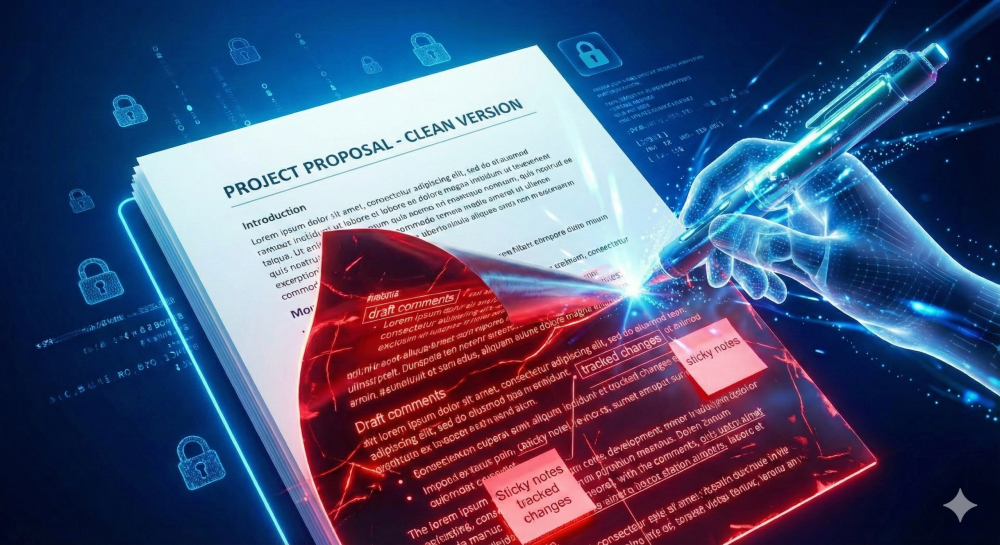
When we talk about “hidden layers,” we aren’t just talking about visible text. Modern file formats like DOCX and PDF are complex containers. They hold much more than what you see on the printed page.
Imagine your document is like a house. The text is the furniture you want guests to see. However, the comments, version history, and metadata are the messy attic and the basement. If you invite someone over (send the file), you don’t want them rummaging through your basement.
The Invisible Risk
Many people assume that if they can’t see a comment on their screen, it’s gone. This is false. Therefore, you must be vigilant. Hidden data includes:
- Personal Information: Author names, email addresses, and company names.
- Editorial History: Deleted text that can be recovered (undo history).
- Comments: Notes between colleagues that were meant to stay internal.
- Hidden Text: Text formatted as white or hidden for layout purposes.
If you do not clean draft comments properly, you are essentially handing the recipient a blueprint of your entire thought process, including your doubts and internal arguments.
Real-World Example: The Redaction Fiasco
To illustrate why this matters, let’s look at a real-world example. This happens more often than you think in high-stakes environments.
A few years ago, a major legal team released a PDF regarding a high-profile political court case. They thought they had redacted sensitive names and figures by placing black bars over the text. However, they didn’t actually remove the underlying data; they just added a visual layer on top.
Journalists simply copied the text from the PDF and pasted it into a text editor. Instantly, the “redacted” information was visible. The black bars were just images floating over live text.
The Lesson: Visual fixes are not technical fixes. You cannot just cover things up. You have to technically clean draft comments and strip the data from the file structure.
Understanding Hidden Layers in Documents
Before we fix the problem, we need to understand the mechanics. Why do these layers exist?
Software like Microsoft Word and Adobe Acrobat are designed for collaboration. They want to save your history so you can go back if you make a mistake. Consequently, they prioritize data retention over data destruction.
What is Metadata?
Metadata is “data about data.” It tells the computer who created the file, when it was last modified, and how long you spent editing it. It seems harmless. However, in a competitive bid, knowing your competitor spent only 10 minutes on a proposal might give you an edge.
The Problem with “Fast Saves”
Some older software features allowed for “fast saves,” which simply appended new data to the end of a file rather than rewriting it. This meant deleted text was still lurking in the file’s hex code. While modern software is better, the principle remains: deleting text on screen doesn’t always scrub the database of the file immediately.
Step-by-Step: How to Clean Draft Comments in Word
Microsoft Word is the most common culprit for accidental data leaks. Fortunately, it has a built-in tool called “Document Inspector” that is very powerful if you know how to use it. Here is my personal workflow for ensuring a Word doc is safe.
1. Finalize the Content first
Before you start stripping data, make sure the writing is done. Once you run these cleaning tools, you might lose the ability to “undo” certain actions.
2. Use the Document Inspector
This is the gold standard for Word users.
- Go to File > Info.
- Click on Check for Issues.
- Select Inspect Document.
A dialog box will appear with a checklist. You want to check everything, but pay special attention to Comments, Revisions, and Versions and Document Properties and Personal Information.
3. “Remove All”
Once the inspection is done, Word will give you a report. It might say, “The following items were found: 12 revisions, 3 comments.”
- Click the Remove All button next to each category.
Important Note: This action is permanent. I always recommend saving a copy of your file named Project_Draft_Master.docx before you do this. Save the cleaned version as Project_Final_Clean.docx.
4. sanitize the Normal Style
Sometimes, personal data hides in your style definitions. If you use a corporate template, ensure the template itself doesn’t contain hidden text or author information in the headers and footers.
If you find that Word is too cumbersome, or if you are dealing with a corrupted file, a good trick is to convert the file format. You can use a tool to convert Word to PDF to flatten the document, and then convert it back if necessary.
Removing Hidden Layers in PDF Files
PDFs are generally safer than Word docs, but they are not immune. In fact, because people view PDF as a “final” format, they often lower their guard.
When you need to clean draft comments in a PDF, you are dealing with “Objects.” A comment in a PDF is an annotation object sitting on top of the page content.
The “Sanitize” Function
Professional PDF editors have a specific “Sanitize” or “Remove Hidden Information” tool.
- Open your PDF.
- Look for the Protection or Redaction tab.
- Select Sanitize Document.
This will strip metadata, hidden layers, overlapping objects, and non-visible content.
Flattening the PDF
Another technique I love is “flattening.” This merges all the layers (text, images, annotations) into a single layer. It makes the comments un-editable and part of the background image, or removes them entirely depending on your settings.
If you don’t have expensive software, you can achieve this by using an online tool to edit pdf. Simply upload your file, ensure no annotations are selected, and save the output.
Sometimes, the best way to clean a page is to remove it entirely if it’s not needed. You can delete pdf pages that contain sensitive internal notes before sending the final pack to a client.
Strategies to Clean Draft Comments in Spreadsheets
We often forget about Excel. However, spreadsheets are notorious for hiding rows and columns.
Unhide Everything
Before you publish a spreadsheet:
- Click the “Select All” triangle in the top left corner.
- Right-click on any row number and select Unhide.
- Right-click on any column letter and select Unhide.
You might be shocked at what you find. I once found a column labeled “Client Max Budget” hidden in a proposal sent to that client. That is a negotiation disaster.
Break External Links
Spreadsheets often link to other workbooks on your local server. If you send the file, the recipient gets an error message saying “Cannot update links,” which reveals your internal file path (e.g., C:\Users\JohnDoe\Bad_Projects\).
- Go to Data > Edit Links.
- Break Links to convert those values to static numbers.
For a thorough clean, you might consider converting the data tables to a non-editable format using a PDF to Excel workflow in reverse, or essentially printing the sheet to PDF.
Pros and Cons: Manual vs. Automated Cleaning
Should you rely on your own eyes or trust software to clean draft comments? Here is a breakdown based on my experience.
| Feature | Manual Cleaning | Automated Tools / Scripts |
| Accuracy | High for visible content, Low for metadata. | Extremely High for metadata and hidden code. |
| Speed | Slow. You have to read every page. | Instant. One click can clean a 100-page document. |
| Reliability | Prone to human error (fatigue). | Consistent every time. |
| Cost | Free (costs your time). | Can require software subscriptions. |
| Control | You decide exactly what stays. | “All or nothing” approach can sometimes delete needed items. |
| Security | Good for context checking. | Essential for GDPR compliance. |
My Verdict: You need a hybrid approach. Use automated tools to strip the technical metadata and hidden layers. Then, use your eyes to do a final read-through for context.
Advanced Techniques: OCR and Image Conversion
If you are dealing with highly sensitive documents—like classified government files or medical records—standard cleaning might not be enough. The ultimate way to clean draft comments is to destroy the digital structure of the file completely and rebuild it.
The “Nuclear Option”
- Convert your document to an image format. You can use tools to convert PDF to JPG or PDF to PNG.
- This turns your text into pixels. Hidden text, metadata, and comments are physically destroyed because they don’t exist in a flat image (JPG).
- Then, convert the images back to PDF.
- Run OCR (Optical Character Recognition) on the new file to make the text searchable again.
This process ensures that only what is visible on the pixels makes it into the final file. It is the digital equivalent of shredding a document and printing a fresh copy.
Best Practices for Final Document Review
Beyond the technical steps, you need a process. Here is a checklist to implement in your workflow to ensure you effectively clean draft comments every time.
1. The “Two-File” System
Never email your working draft. Create a folder named “Outgoing.” Only move files there after they have been processed. This physical separation helps prevent accidental clicks on the wrong file version.
2. Rename the File
Renaming the file forces you to acknowledge its status. Append _CLEAN_FINAL to the filename. Avoid filenames like Contract_v3_FINAL_FINAL_REAL_v2.docx. That is a recipe for confusion.
3. Check File Size
This is a pro tip. If a one-page text document is 5MB, something is wrong. It might contain high-resolution images that were cropped (but not deleted) or embedded objects. A clean document should be lightweight. You can use tools to compress pdf to strip out unnecessary bloat, which often removes hidden data as a side effect.
4. Use PDF for Final Delivery
Unless the recipient needs to edit the file, never send a Word doc. Always convert to PDF. It locks the formatting and provides a standard layer of protection. However, remember that PDFs can still hold comments, so you still need to sanitize them.
5. Update Your Software
Software vendors like Adobe and Microsoft frequently patch security holes that allow data leakage. Keep your tools updated.
The Psychological Aspect of “Drafting”
Why do we leave comments in the first place? It is part of the creative process. We need a space to be messy.
However, the problem arises when we blur the lines between the “workspace” and the “showroom.”
- The Workspace: This is for you and your team. It should be messy. Use comments freely.
- The Showroom: This is for the client or the public. It must be pristine.
To maintain this separation, I suggest using distinct colors for internal comments. For example, instruct your team to highlight “Internal Only” comments in bright red. This visual cue acts as a last line of defense before you clean draft comments.
Workflow Automation
If you run a business that processes hundreds of documents, doing this manually is impossible. You should look into Workflow Automation.
You can set up scripts that automatically:
- Ingest a file from a specific folder.
- Run a sanitization script.
- Convert the file to PDF.
- Apply a Digital Signature.
- Move it to the “Sent” folder.
This removes human error from the equation. Even simple tools can help. For instance, if you need to reorganize a report before sending, use a tool to organize pdf pages, which often rebuilds the file structure, leaving behind orphaned data.
Conclusion
The digital world remembers everything, but your documents don’t have to. The ability to clean draft comments and remove hidden layers is a critical skill for anyone working in the modern office. It protects your privacy, your professional reputation, and your client’s trust.
Don’t let a stray comment ruin a deal. Don’t let metadata reveal your pricing strategy. Take the extra five minutes to inspect, sanitize, and polish your files.
Whether you use the built-in Document Inspector in Word, a dedicated PDF sanitizer, or the “Nuclear Option” of image conversion, the goal is the same: total control over what you share.
Next time you are about to hit send, pause. Ask yourself: Have I cleaned the attic? Is this file truly empty of hidden layers? If the answer is yes, send it with confidence. If not, open those tools and get to cleaning.