
Keep PDFSTOOLZ Free
If we saved you time today and found PDFSTOOLZ useful, please consider a small support.
It keeps the servers running fast for everyone.

🔒 100% Secure & Private.
You have likely been there before. You spend hours polishing a document. It is a masterpiece of formatting. You have meticulously inserted hyperlinks to your sources, your portfolio, your email address, and your social media profiles. You feel proud. You hit Ctrl+P, select “Microsoft Print to PDF,” and send the file off to a client or a recruiter.
Then, you wait. And you wait.
Eventually, you get a reply, but it isn’t the one you wanted. “Hey, the links in this document don’t work. Can you resend it?”
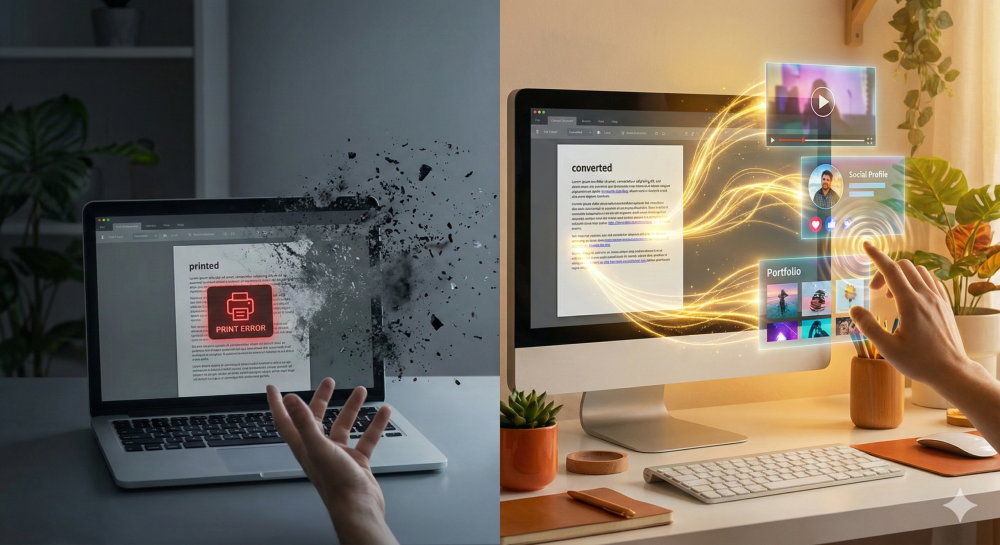
Panic sets in. You open the file on your desktop, hover over the blue underlined text, and… nothing. The cursor doesn’t change to a little hand. The text looks like a link, but it acts like dead pixels. This is the silent killer of professional digital documents: the “Print to PDF” trap.
If you want to convert to PDF with links working perfectly, you have to fundamentally change how you think about saving files. “Printing” is for paper. “Converting” is for data. Today, we are going to dig deep into why this happens, share a painful real-world lesson, and show you exactly how to handle your documents so they remain interactive and professional.
The Mechanics: Why “Print to PDF” Destroys Data
To understand the fix, you have to understand the failure. Why does a tool that literally says “PDF” in the name fail to create a fully functional PDF?
The answer lies in the history of computing. When you select the “Print” command in any application—whether it is a web browser or a text editor—you are engaging a specific piece of software called a “printer driver.”
The “Paper Simulator” Problem
Historically, printer drivers were designed solely to talk to physical machines. Think about a physical piece of paper for a second. Does a sheet of A4 paper have clickable buttons? Can you tap a physical page to open a website? Obviously not.
Therefore, the printer driver’s only job is to translate your digital layout into dots of ink on a page. It cares about margins, ink density, and paper size. It does not care about code, URLs, or metadata.
Consequently, when you use a “Print to PDF” virtual driver, the software acts exactly like a physical printer. It takes your text, your images, and your fancy formatting, and it “flattens” them. It essentially takes a high-resolution digital photograph of your document.
As a result, the interactive layer is stripped away. The text might remain searchable in some modern drivers, but the underlying Metadata—the invisible code that tells a reader “this text is a URL”—is discarded. You are left with a ghost: something that looks like a link but is lifeless.
Ideally, You Want to Preserve Intelligence
When you convert to PDF with links properly, you are not flattening the file. Instead, you are translating the document structure. You are taking the XML language of one file and rewriting it into the PDF language.
This process preserves:
- Hyperlinks: Both internal navigation and external websites.
- Table of Contents: clickable bookmarks in the sidebar.
- Accessibility Tags: helping screen readers for the visually impaired.
- Comment Layers: if you choose to keep them.
A Real-World Example: The “Dead Link” Resume Disaster
Let’s get personal for a moment. This isn’t just about technical file formats; this is about lost opportunities.
A few years ago, I was helping a friend, let’s call her Sarah, with her job hunt. Sarah is a talented graphic designer. Her resume was beautiful—visually stunning, minimalist, and clean. Because she wanted to keep the page uncluttered, she didn’t list her project details on the page. Instead, she used stylish anchor text like “View Branding Project” linked directly to her Behance portfolio.
She applied to nearly 50 jobs in a month. She got zero interviews.
We were baffled. Her work was incredible. Eventually, I asked her to forward me the exact file she was uploading to the application portals. I opened it on my phone. I tapped “View Branding Project.”
Nothing happened.
I tapped her email address at the top. Nothing.
Sarah had been using the “Print” dialog box because she liked how it handled her margins better than the default export settings. By doing so, she had sent out 50 static images of a resume. The recruiters couldn’t see her work because the “buttons” didn’t work. They assumed she had made a mistake or, worse, that they didn’t have time to Google her name. They just moved on to the next candidate.
Once we fixed her process to properly convert to PDF with links, she landed three interviews the following week. The lesson? Your process matters as much as your content.
Pros and Cons of “Print to PDF”
Is “Print to PDF” always the villain? Not necessarily. It is a tool, and like any tool, it has a specific purpose. It is just usually the wrong tool for sharing digital documents.
Cons (The Dealbreakers)
- Kills Hyperlinks: As discussed, all interactivity is lost.
- Removes Bookmarks: Your navigation pane will be empty, making long documents hard to read.
- Lowers Image Quality: It often compresses images to 150 DPI (standard print resolution) rather than keeping high screen resolution.
- Accessibility Nightmare: Screen readers cannot navigate the structure of a “printed” PDF effectively, potentially putting you in violation of compliance standards.
Pros (The Niche Uses)
- “Flattening” for Security: If you want to ensure no one can easily edit your text or copy specific elements, printing can help lock it down by turning text into vectors or bitmaps.
- Removing Metadata: If you need to strip comments, revision history, or hidden data before a legal release, this is a quick “nuclear option.”
- Web Page Capture: sometimes browsers render messy HTML. Printing to PDF can force a clean layout, even if links break.
However, for 99% of professional tasks, the cons heavily outweigh the pros.
How to Convert to PDF with Links: The Right Methods
Now that we have identified the problem, let’s look at the solutions. The goal is to bypass the printer driver entirely and use a direct conversion engine.
Method 1: The “Save As” Technique (Microsoft Word)
This is the standard method for most users of Microsoft Word. Microsoft has a built-in PDF engine that is far superior to the print driver.
- Open your document.
- Click File > Save As.
- In the dropdown menu, select PDF (*.pdf).
- Crucial Step: Before hitting save, look for a link that says “More Options” or “Options.”
- Ensure “Best for electronic distribution and accessibility” is checked (if available).
- Hit Save.
This method tells Word to translate the structure of the .docx directly into PDF syntax, keeping every link alive.
Method 2: The “Export” Function
Similar to “Save As,” but often offers more granular control, especially in newer versions of Office.
- Go to File > Export.
- Click Create PDF/XPS Document.
- Before saving, check the Options button.
- Ensure “Word Bookmarks” is selected and converted to PDF bookmarks.
This is the best way to convert to PDF with links if you have a long document with a Table of Contents.
Method 3: Using Google Docs
Google Docs is notorious for this issue. If you hit Ctrl+P in Chrome while looking at a Google Doc, you get a broken PDF.
The Fix:
- Go to File.
- Hover over Download.
- Select PDF Document (.pdf).
This triggers Google’s internal conversion engine, which (usually) preserves your links perfectly.
Method 4: Mac Users (Pages and Keynote)
Apple users often rely on the “Print” dialog because the “Save as PDF” option is actually located inside the Print menu on macOS. This is confusing.
However, even on Mac, it is safer to use the File > Export To > PDF menu option. This gives you a dedicated menu where you can check a box that says “Include hyperlinks.” If you miss that checkbox, you are back to square one.
Advanced Troubleshooting: When Links Still Fail
You followed the steps. You used “Save As.” You didn’t print. And yet, the links are still dead. This is incredibly frustrating. Here is why that might be happening.
The “http://” Issue
Some PDF readers are smart; if they see text that looks like “www.google.com“, they auto-link it. However, if you write “Click Here” and link it, the reader needs the underlying code.
Sometimes, if you forget to add the http:// or https:// prefix in your source document, the conversion engine gets confused. It doesn’t know if “https://www.google.com/search?q=google.com” is a website or just text. Always ensure your hyperlinks in your source editor are fully qualified URLs.
Layering Problems
This is a common issue in design software like Canva or PowerPoint. If you have placed a transparent image or a text box over your hyperlink, the PDF might register the top layer as the “clickable” area. Since the top layer has no link, nothing happens.
Fix: Bring your text to the front using the “Arrange” or “Order” tools in your editor before you export.
Format Corruption
Sometimes a file is just too old. It has been saved, re-saved, and emailed back and forth so many times that the internal coding is messy. In this case, it helps to convert it to a different format first to scrub the data.
You can use a professional tool to convert your Word to PDF freshly. These dedicated online converters often have newer code libraries than your desktop software, effectively rebuilding the file from scratch and fixing broken structures.
The Impact on File Size and Quality
Another reason people mistakenly use “Print to PDF” is file size. They think, “My PDF is too big, so I’ll print it to a new PDF to shrink it.”
While this works to reduce size, it destroys your data. It is a destructive form of compression. You are trading functionality for storage space.
When you convert to PDF with links using the proper export methods, you often get a choice. You can maintain “Standard” (publishing online) or “High Quality” (printing).
“Standard” is usually small enough for email. If it is still too big, do not resort to printing! Use a dedicated compression tool that respects the document structure. This way, you keep the links but lose the unnecessary weight.
Handling Images and Scans
What if your source isn’t a Word doc? What if it is an image, like a JPG or PNG?
Obviously, a flat image cannot have a clickable link embedded in the pixels. If you convert a JPG to PDF, you will get a static PDF. The only way to add links to a scanned document or an image-based PDF is to add them after the conversion.
You would need to use a PDF editor to draw an invisible box over the area you want to be clickable and assign a URL to it. This is a great trick for making “buttons” on graphic flyers that were designed in Photoshop but need to be emailed as PDFs.
Conclusion
The digital world moves fast. We expect interactivity. Sending a PDF with broken links is like handing someone a business card with a typo in the phone number—it creates friction. And in business, friction kills deals.
The habit of “Printing to PDF” is a holdover from a bygone era. It is a skeuomorphic instinct—treating digital files like physical paper. It is time to retire it for your digital documents.
By choosing to convert to PDF with links using “Save As,” “Export,” or dedicated online converters, you ensure your documents are professional, accessible, and fully functional. Your work deserves to be seen, and your links deserve to be clicked. Don’t let a printer driver stand in your way.
Take five minutes today to check your templates. Open your resume, your proposals, and your brochures. Click the links. If they don’t work, now you know exactly how to fix them. Make the switch to proper conversion, and keep your digital connections alive.