
Keep PDFSTOOLZ Free
If we saved you time today and found PDFSTOOLZ useful, please consider a small support.
It keeps the servers running fast for everyone.

🔒 100% Secure & Private.
Introduction
It happens at the most inconvenient times. You are about to send an urgent email application, upload a final assignment, or submit a government form. Suddenly, a frustrating error message pops up: “File size exceeds the limit.”
We have all faced this digital roadblock. Whether it is Gmail’s 25MB limit or a university portal that refuses anything over 5MB, a large PDF file can bring your workflow to a grinding halt.
However, you do not need to delete important pages or sacrifice clarity to fix this.
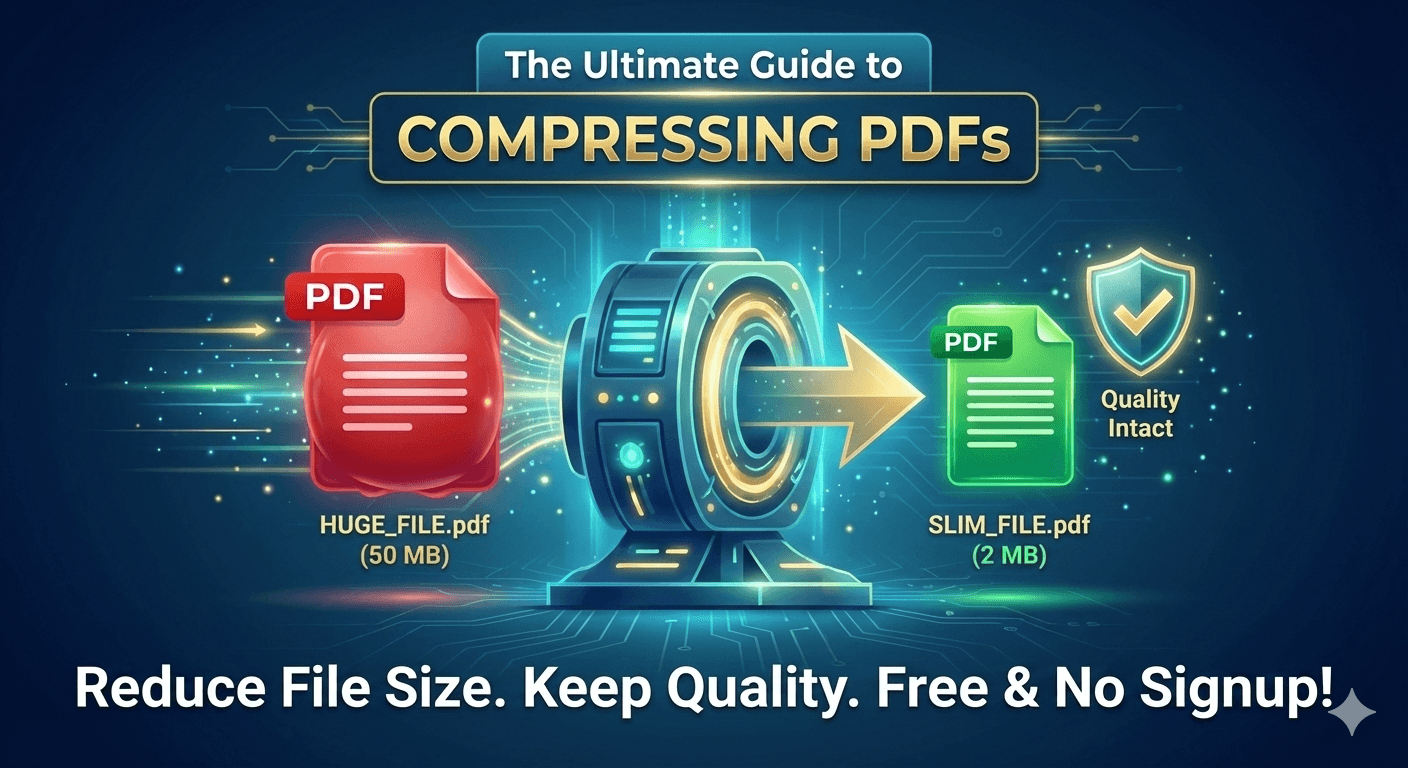
In this comprehensive guide, we will explore exactly how to compress PDF files using PDFSToolz. We will demonstrate how to significantly reduce your document’s weight while keeping the text sharp and the images clear. Best of all, we will show you how to do it for free, without registering an account.
Why Are My PDF Files So Big?
Before we solve the problem, it is helpful to understand the cause. PDFs are designed to be high-fidelity documents. Consequently, they often carry “heavy” data that you cannot see.
- High-Resolution Images: If you scanned a document or added photos, they might be saved at print-quality resolution (300 DPI or higher), which is unnecessary for screens.
- Embedded Fonts: PDFs store font files inside themselves to ensure the text looks the same everywhere. This adds significant bulk.
- Hidden Metadata: Editing history, bookmarks, and thumbnails can clutter the file code.
To solve this, you need a smart compression tool. A good compressor strips away this excess weight without making the document look pixelated or blurry.
The Solution: PDFSToolz Smart PDF Compressor
While there are many desktop applications available, they often require expensive subscriptions or take up space on your hard drive. Alternatively, PDFSToolz offers a cloud-based solution running on high-speed servers.
Here is why this tool is the preferred choice for professionals and students:
- Smart Optimization: It balances quality and size automatically.
- Total Privacy: Files are encrypted and deleted after processing.
- No Watermarks: Your compressed file looks professional.
- Device Agnostic: It works perfectly on iPhones, Androids, Windows, and Mac.
Step-by-Step: How to Reduce PDF File Size in Seconds
Shrinking your document is a straightforward process. You do not need technical skills to get a lighter file. Simply follow these three steps:
Step 1: Upload Your Heavy PDF
Navigate to the Compress PDF tool.
- Click the “Select PDF Files” button.
- Alternatively, you can drag and drop your file directly from your desktop.
- Pro Tip: This tool supports batch processing, so you can upload multiple large files at once to save time.
Step 2: Let the Algorithm Optimize
Once uploaded, our powerful compression engine analyzes your file structure.
- It scans for redundant data.
- It downsamples images to a web-friendly resolution (usually 144 DPI or 72 DPI), which looks identical to the human eye on a screen.
- It removes unused fonts and metadata.
This process happens in the cloud, utilizing our high-speed VPS infrastructure to ensure you aren’t waiting around.
Step 3: Download and Share
After the process is complete, you will see exactly how much space you saved. For example, a 10MB file might be reduced to 2MB—a 50% to 80% reduction is common.
- Click “Download” to save the optimized version.
- The file is now ready to be emailed, uploaded to Slack, or submitted to any web portal without error messages.
Understanding “Lossless” vs. “Lossy” Compression
Users often worry: “Will my PDF look terrible after compression?”
This is a valid concern. Early compression tools often ruined documents, making text unreadable and images blocky. However, modern technology has evolved.
- Lossless Compression: This method shrinks the file by tidying up the code. The visual quality remains exactly 100% the same. This is great for text-heavy documents but yields smaller size reductions.
- Lossy Compression (Smart Mode): This method, used by most advanced tools, slightly reduces image quality in a way that is imperceptible to the human eye. It results in massive file size savings.
PDFSToolz uses an intelligent algorithm that finds the “Sweet Spot”—the perfect balance where the file size is minimized, but the document still looks crisp and professional.
5 Major Benefits of Compressing Your PDFs
Why should you make compression a habit?
- Faster Email Transmission:
Large attachments get stuck in the “Outbox” or bounce back. A compressed PDF flies through the servers instantly. - Website Speed and SEO:
If you are a website owner hosting PDFs (like brochures or menus), smaller files load faster. Google rewards fast-loading pages with better search rankings. - Save Storage Space:
Whether you use Google Drive, Dropbox, or your phone’s internal storage, space is money. Compressing files means you can store 3x or 4x more documents in the same amount of space. - Easier Mobile Viewing:
Big files consume mobile data and take a long time to open on smartphones. Optimized files are mobile-friendly. - Meeting Upload Requirements:
Many government portals (for visas, taxes, or IDs) have strict limits, often as low as 2MB. Compression is the only way to submit these forms successfully.
Security First: Is It Safe to Upload My Data?
Trust is essential when handling contracts, bank statements, or personal IDs.
We take security seriously. When you use our Compress PDF tool:
- SSL Encryption: The connection is secured via HTTPS.
- Automatic Purging: We do not keep your files. They are permanently deleted from our servers shortly after you download them.
- No Data Mining: We do not read, analyze, or sell your document contents.
Troubleshooting: What If My File Won’t Compress?
Occasionally, a file might resist compression. Here are a few reasons why:
- Already Compressed: If the file was previously optimized, there might be no “fat” left to trim.
- Encrypted Files: If your PDF is password-protected, our system cannot open it to compress the contents. Please remove the password first using a trusted tool.
- Corrupted Data: Rarely, a damaged file might cause an error. Try saving it as a new PDF in your viewer and uploading it again.
Conclusion: A Faster, Lighter Digital Life
In a world that demands speed and efficiency, carrying around “heavy” digital files slows you down. Whether you are a student, a freelancer, or a corporate executive, having a reliable compression tool in your bookmark bar is essential.
Stop worrying about email bounce-backs and upload errors. PDFSToolz provides a fast, free, and secure way to slim down your documents without compromising their professional look.
Ready to reclaim your storage space? Scroll up and shrink your PDF now.