
Keep PDFSTOOLZ Free
If we saved you time today and found PDFSTOOLZ useful, please consider a small support.
It keeps the servers running fast for everyone.

🔒 100% Secure & Private.
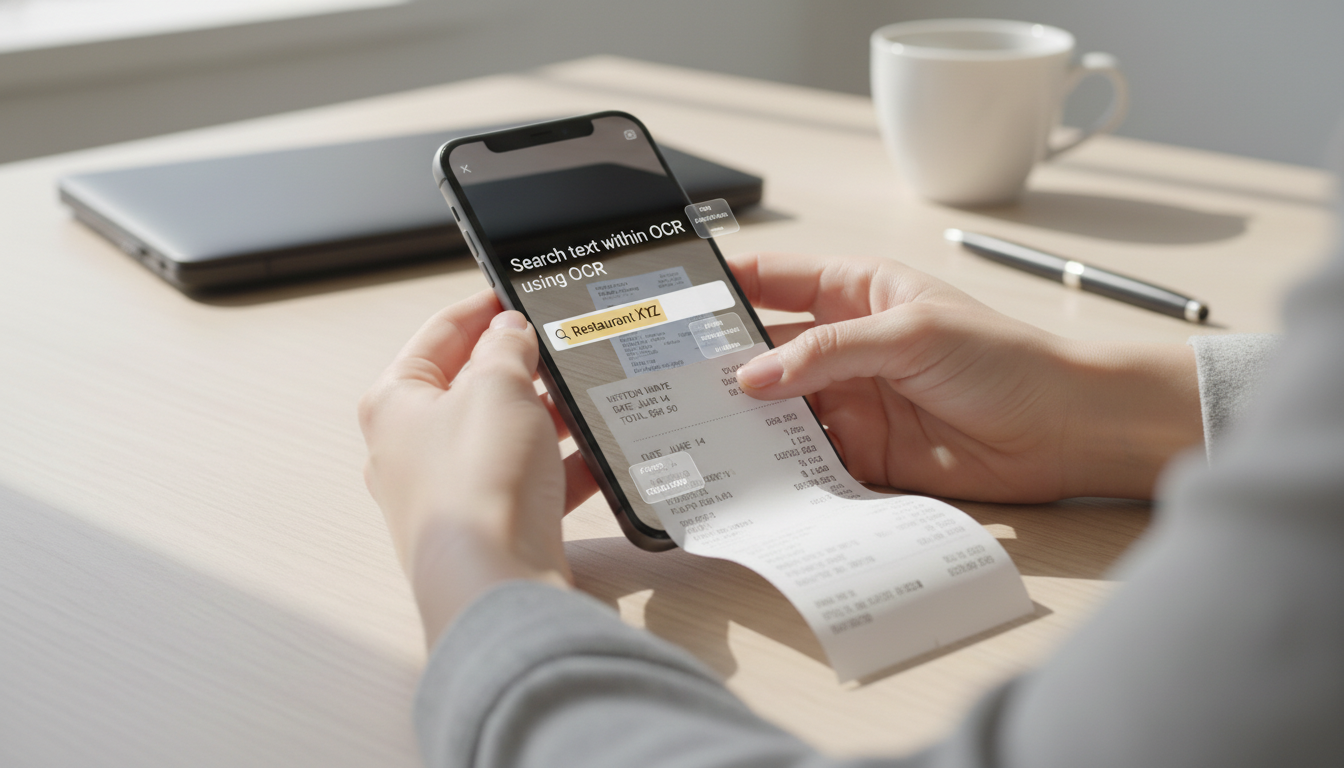
I used to treat receipts like tiny time bombs. I’d toss them into a drawer, tell myself I’d sort them “later,” and then regret it when I needed proof of a purchase. Consequently, I’d waste hours zooming into blurry scans, squinting at faded ink, and guessing which receipt belonged to which expense. If that sounds familiar, you’re not messy—you’re dealing with paper’s worst feature: it’s not searchable. The fix is simple and powerful: search text in scanned receipts using OCR, so your receipts behave like real data instead of mystery scraps.
This guide is built for people who want results, not theory. You’ll learn how OCR works, how to get clean scans, and how to make your receipts searchable across devices. Moreover, I’ll include a specific real-world example you can copy, plus a pros and cons list so you know exactly what you’re trading off.
What OCR actually does (and why receipts are harder than documents)
OCR stands for Optical Character Recognition. In plain terms, it turns a picture of text into real, selectable text. Additionally, many OCR tools can extract key fields like the store name, the date, and the total amount.
Receipts are harder than normal documents for three reasons:
- They’re often printed on thermal paper that fades quickly.
- The fonts are small, condensed, and sometimes broken.
- Layouts are messy, with item codes, abbreviations, and random spacing.
Consequently, good OCR results come from two things working together: a decent scan and a tool that handles “receipt chaos” well.
My honest opinion: OCR isn’t “magic,” but it feels like magic once your workflow is consistent. The biggest difference isn’t the app—it’s how you capture and store the receipt.
How to search text in scanned receipts using OCR: the reliable workflow
If your goal is to search inside receipts—like finding every receipt that contains “VAT,” “Uber,” “Hotel,” or “Invoice”—you need searchable text, not just a saved image. Therefore, your workflow should include scanning, OCR conversion, and searchable storage.
Step 1: Scan the receipt so OCR can win
Before you even run OCR, your scan decides half the outcome. Additionally, you don’t need expensive hardware. A modern phone camera is enough if you do it right.
Use this checklist:
- Put the receipt on a flat surface with solid lighting.
- Avoid glare from a lamp or window reflection.
- Keep the camera parallel to the receipt.
- Fill the frame so text is large and clear.
- Don’t over-compress the image before OCR.
If you can choose scan settings, aim for 300 DPI or higher. Moreover, try grayscale if color creates shadows.
Quick tip that saves time: scan once, check the sharpness, then move on. Blurry receipts waste more time than scanning twice.
Step 2: Choose your OCR method (online tool vs desktop vs mobile)
You have three common paths. Each one works, but they shine in different situations.
Option A: Online OCR tool (fastest for most people)
An online OCR tool is perfect when you want quick results with minimal setup. Additionally, it works on any device.
If you want a browser-based option focused on turning scanned PDFs into searchable text, you can use your OCR page here: Use the OCR tool
My take: online OCR is the best “default” if you process receipts weekly and want simple. However, don’t upload sensitive receipts if you’re unsure about your compliance requirements.
Option B: Desktop OCR (best for heavy volume)
Desktop software can be faster for batches and can offer stronger layout control. Consequently, it’s a solid choice for accountants, finance teams, or anyone scanning hundreds of receipts.
Option C: Mobile scanning apps (best for “capture now”)
Mobile apps are great when you’re traveling or collecting receipts on the move. Additionally, some apps auto-crop and enhance contrast before OCR, which improves accuracy.
Step 3: Convert the scan into searchable text
This is the moment OCR happens. The output you want is a file where you can press Ctrl+F (or search) and actually find words inside the receipt.
Typical outputs include:
- Searchable PDF (image + hidden text layer)
- Plain text (TXT)
- Word document (DOCX)
If you prefer searchable text you can edit, OCR to Word is useful. If you want a “receipt archive” that stays visually identical, searchable PDF is usually best.
For background reading on how OCR works, here are two reliable references:
(That’s the maximum outbound linking I’ll use so your page stays clean.)
Step 4: Verify accuracy using a 30-second audit
Even great OCR makes mistakes on receipts. Therefore, do a quick verification before you rely on the data.
Here’s my 30-second audit:
- Search for the store name and confirm it’s spelled correctly.
- Check the date line.
- Check the total amount line.
- Spot-check one item line with numbers (prices often break).
If the receipt is critical (tax, reimbursement, warranty), do this audit every time. Additionally, rename the file after verification so you can retrieve it instantly later.
Step 5: Make receipts searchable with a smart naming system
OCR lets you search inside the file. However, naming still matters because it speeds up your retrieval.
A naming system I recommend:
YYYY-MM-DD — Vendor — Total — Category
Examples:
- 2026-02-01 — Carrefour — 43.20 — Groceries
- 2026-01-18 — Trenitalia — 27.90 — Travel
- 2026-01-05 — Apple Store — 1299.00 — Equipment
Consequently, you can search the folder even without opening anything.
How to search text in scanned receipts using OCR without headaches
This is where most people get stuck: they OCR the receipt once, then can’t find it later. Therefore, treat searchability as a system.
Use one of these searchable storage approaches:
- A “Receipts” folder inside cloud storage with consistent names
- A monthly folder structure (2026-01, 2026-02, etc.)
- A spreadsheet index for business receipts (date, vendor, total, link)
Additionally, keep your receipts in one place. Fragmented storage kills search speed.
Real-world example: finding all “VAT” receipts for a quarterly report
Let’s say you’re preparing a quarterly expense report and you need every receipt that includes “VAT” or “IVA” for compliance.
Here’s a realistic workflow:
- You scan receipts during the quarter as PDF or images.
- Once per week, you run OCR so each receipt becomes searchable.
- You save them in a folder like: Receipts > 2026-Q1
- At report time, you open the folder and search “VAT” (or use your document manager search).
- You instantly see which receipts include the term, then you open only those files.
- You verify totals and dates, then export your list to your accounting workflow.
What changes your life here is not only OCR. It’s the ability to search for a specific compliance term and find it in seconds. Consequently, your “receipt day” becomes a short task, not a weekend nightmare.
Pros and cons of using OCR for receipts
Pros
- Makes receipts searchable by keyword
- Saves time during audits, taxes, and reimbursements
- Helps detect duplicates (same vendor/total appears twice)
- Supports paperless workflows
- Improves organization even for personal budgeting
Cons
- Accuracy depends heavily on scan quality
- Thermal paper fades, so old receipts may OCR poorly
- Numbers and decimals are sometimes misread
- Some tools struggle with curved, crumpled receipts
- Privacy concerns if uploading sensitive receipts online
My opinion: the time saved is worth it for almost everyone. However, if you handle highly sensitive receipts, consider offline tools or strict privacy controls.
Tips to improve OCR accuracy on scanned receipts
If OCR results look messy, try these adjustments:
- Re-scan with stronger lighting and less shadow.
- Crop tighter so the receipt fills the frame.
- Use grayscale to boost contrast.
- Avoid heavy compression before OCR.
- Flatten the receipt to reduce curvature.
- If the tool allows it, select the correct language.
Additionally, if your receipts are in multiple languages, choose a tool that supports multilingual OCR. Language mismatch is a silent accuracy killer.
Common mistakes that stop you from finding text later
Here are the traps I see repeatedly:
- Saving only a JPG image and assuming it’s searchable
- OCRing once, but exporting to a format that loses the text layer
- Renaming files randomly (“scan_3848_final_final.pdf”)
- Storing receipts across five apps and three devices
- Never verifying totals, then trusting wrong numbers
Consequently, the “OCR didn’t work” complaint is often a storage or naming issue, not an OCR issue.
How to search text in scanned receipts using OCR for business teams
If you manage receipts for a business, you need consistency across people. Therefore, set a simple policy:
- Everyone scans the same way (flat, clear, no glare).
- Everyone OCRs receipts weekly.
- Everyone uses the same naming format.
- Everyone stores receipts in the same folder structure.
Additionally, require a quick verification for high-value receipts. One wrong total can cause real accounting friction.
Conclusion: turn receipts into searchable proof, not clutter
Receipts are small, but they steal big chunks of time when they’re not searchable. Once you search text in scanned receipts using OCR, everything changes. You stop hunting for proof of purchase. You stop guessing totals. Moreover, you stop wasting evenings sorting paper because your archive becomes a searchable library.
If you do just one thing after reading this, make it this: scan cleanly, run OCR, and name your files consistently. That combination is what makes the system stick. Consequently, you’ll feel the payoff the first time you search a single word—like “VAT”—and instantly pull up exactly what you need.