
Keep PDFSTOOLZ Free
If we saved you time today and found PDFSTOOLZ useful, please consider a small support.
It keeps the servers running fast for everyone.

🔒 100% Secure & Private.
Let’s be brutally honest about the paper stack sitting on your desk right now. You know the one. It’s been brooding there all week, judging you.
It is overflowing with vital information—signed contracts, historical reports, research notes, or perhaps a mountain of faded receipts—that absolutely needs to be inside your computer. But right now? It is just dead weight in the physical world.
The very thought of digitizing it is exhausting.
If you are like most professionals, you probably assume you only have two terrible options. Option A: Continue to ignore it until a deadline forces your hand. Option B: Brew a pot of industrial-strength coffee, crack your knuckles, and resign yourself to spending the next six hours hunched over your keyboard, manually typing everything out. Letter by painful letter.
Listen, I would rather scrub the office communal fridge than do hours of manual data entry.
It is soul-sucking work. Furthermore, it is incredibly slow. Most importantly, it is dangerous. If you miss one decimal point in a financial table, or if you typo a client’s legal name in an agreement, you are suddenly in a world of trouble. Retyping isn’t just boring; it is basically begging for human error to ruin your day.
But here is the good news: we aren’t living in the nineties anymore. You absolutely do not have to do that to yourself.
There is a technology that allows you to take a picture of those words and have your computer just… understand them. Like magic. It is called OCR, and it is the secret weapon for turning scanned images into editable text without losing your mind.
This isn’t going to be a shallow, quick-tip article. We are going deep. This is the ultimate, real-talk masterclass on how this tech actually works, why it sometimes fails miserably, and the exact, step-by-step workflows you need to stop typing and start getting things done. We will even cover which tools to use, like ocr, to make the process painless. Let’s reclaim your time.
What Is This Sorcery Called OCR?
Before we get into the “how-to,” let’s strip away the geek-speak and understand what we are dealing with. OCR stands for Optical Character Recognition.
Why does this matter? Because your computer is shockingly foolish when it comes to pictures.
When you use a flatbed scanner or snap a photo of a document with your phone, your computer does not see words. It doesn’t see sentences. It doesn’t know what the letter “A” is. It just sees a giant grid of colored dots, known as pixels. To your computer, a photo of a complex legal contract is basically the same as a photo of a sunset. It is just static imagery. You cannot edit a picture of text in Microsoft Word any more than you could edit the ingredients on a picture of a soup can.
The Translator Between Worlds
This is where OCR steps in.
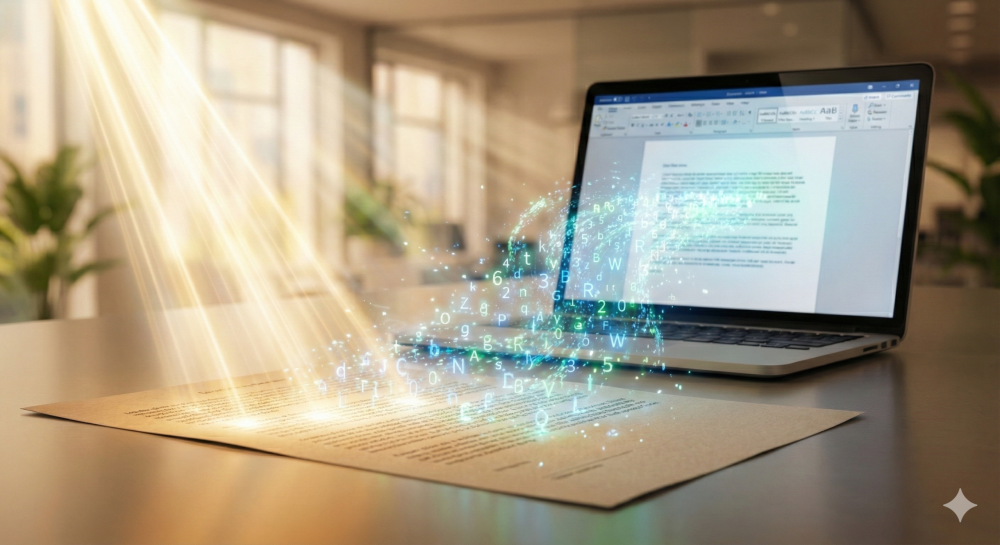
Think of OCR software as a brilliant translator that lives between the physical paper world and the digital data world. It analyzes that grid of dots and starts hunting for patterns.
It thinks, “Okay, I see a shape there. It has a long vertical line and a small loop at the top right. That looks like the letter ‘P’. Next to it is a circle; that’s an ‘O’. Next is a vertical line with a dot over it; that’s an ‘i’.” It strings them together to recognize the word “Poi.”
It does this thousands of times a second, across the entire page. It takes the static picture of text and transmutes it into actual, real digital characters that you can select, copy, paste, and manipulate.
From Irrational Pattern Matching to Smart AI
If you tried using OCR fifteen or twenty years ago, you probably hated it. I know I did. It was terrible.
Back then, the technology relied on simple pattern matching. You basically had to train it to read a specific font. If your scan was slightly crooked, or heaven forbid there was a coffee smudge on the paper, the software would panic. The output usually looked like alien hieroglyphics. Consequently, you would spend more time fixing the errors than it would have taken to just type the document out from scratch.
However, things have changed wildly in the last few years.
Thanks to rapid advancements in Artificial Intelligence and machine learning, modern OCR is a beast. It hasn’t just been programmed; it has been trained on millions of documents. It recognizes thousands of font variations instantly. It can read multiple languages on the same page without choking. It can even figure out messy, multi-column layouts.
Because of this technological evolution, turning scanned images into editable text isn’t just a neat parlor trick anymore. It is a mandatory survival skill for any modern office worker.
Why You Need This (Beyond Just Being Lazy)
You might be thinking, “I don’t type that much, is this really worth learning?”
Yes. Believe me, it is. It isn’t just about avoiding the drudgery of typing. It is about unlocking the data trapped in paper.
The “Ctrl+F” Superpower
Think about the biggest hidden headache of paper documents: lack of searchability. You cannot “Ctrl+F” a filing cabinet.
If your boss asks, “Find that specific clause about third-party liability in the 2023 vendor contract,” and that contract is just a stack of paper, your afternoon is ruined. You are reading for hours.
On the other hand, if that document is OCR’d? You open the file, hit Ctrl+F, type “liability,” and you have your answer in three seconds flat. That isn’t just laziness; that is efficiency.
The Space and Storage Issue
Paper takes up expensive physical room. Filing cabinets are bulky. But even digital scans take up a ton of hard drive space.
A high-resolution, full-color image scan of a single page might be 5 megabytes. The text version of that same page? Maybe 20 kilobytes. It is exponentially smaller. By converting images to text, you save massive amounts of server space and make files easier to email and share.
Accessibility Matters
Finally, we must consider accessibility. A blind or visually impaired person using a screen reader cannot read a picture of text. It is completely inaccessible to them.
OCR unlocks that document. It turns the visual data into readable text that assistive technologies can speak aloud. Turning scanned images into editable text is often a necessary step for compliance and inclusivity.
A Real-Life Horror Story: The Receipt Shoebox
To really drive home the value here, let me share a personal example that still gives me mild anxiety. A few jobs ago, I had to cover for the office manager who went on emergency leave right after a massive company-wide conference.
I walked in on Monday morning, and sitting on my desk was a shoebox. I am not joking. A literal, battered shoebox.
It was stuffed to the brim with receipts from about twenty different sales reps. It was a disaster zone of expense documentation. There were coffee-stained napkins with numbers scribbled on them, torn edges, and those cheap thermal paper hotel receipts where the ink was already fading.
The Impossible Deadline
The directive from finance? “We need all of this consolidated into an Excel Spreadsheet with vendors, dates, tax, and totals by the end of the day for end-of-month closing.”
I almost walked out. I did the quick math in my head—deciphering the bad handwriting, typing the data, cross-referencing totals… it was going to take me eight hours, minimum. And my eyes would be bleeding by the end of it.
Instead of accepting my grim fate, I decided to bet on OCR.
The OCR Solution
Here is exactly what I did:
- Capture: I grabbed my phone and used a scanning app. I spent about 30 minutes just rapid-fire snapping photos of every single receipt, flattening them out on my desk as I went.
- Consolidate: I ended up with over fifty separate image files. To make it manageable, I used a tool to merge pdf files, combining that whole mess into one single, giant PDF document.
- Process: I uploaded that master PDF to a robust ocr tool specifically designed to handle financial documents. I crossed my fingers and waited.
The Result
The result wasn’t 100% perfect. It struggled with one sales rep’s handwriting that looked like a chicken had walked across the page with inky feet.
But the printed receipts? It absolutely nailed them. It intelligently pulled the dates, identified the tax amounts, and recognized the vendor names.
Best of all, I was able to export the whole thing using a pdf to excel converter. Instead of eight hours of data entry hell, I spent about 45 minutes cleaning up the spreadsheet and validating the numbers against the originals.
That is the power of this technology. It turned a nightmare day into an easy morning.
The Honest Truth: Pros and Cons
I am a huge evangelist for this technology, but I am not going to lie to you and say it is magic dust that fixes every bad document. It has flaws. You need to know what you are getting into to manage your expectations.
The Good Stuff (Pros)
- Massive Speed: This is obvious, but bears repeating. A computer can “read” 500 pages faster than you can type five.
- Instant Searchability: As mentioned, turning dead pixels into live, searchable data is priceless for research and legal work.
- Formatting Preservation: Good, modern OCR doesn’t just give you a raw .txt file. If you use a solid pdf to word converter post-OCR, it often keeps the bold text, headers, lists, and paragraphs looking exactly like the original scan.
The Bad Stuff (Cons)
- Garbage In, Garbage Out: This is the golden rule of OCR. If your scan looks terrible to your human eyes, it will look terrible to the computer’s eye. Blurry, too dark, crumpled, or low-resolution pages will confuse the AI, resulting in unusable gibberish output.
- Handwriting is Still Hard: AI is getting smarter, but human handwriting is chaotic. Cursive or messy scribbles are still kryptonite for most standard OCR engines. Do not expect it to magically transcribe your doctor’s handwritten notes perfectly.
- Complex Layouts Break Things: If you have a magazine page with text wrapped around pictures, pull-quotes, and three different columns, the OCR engine might get confused about the reading order. You might get the text, but it will be jumbled up out of sequence.
- Security Concerns: Many easy-to-use OCR tools are online cloud services. You are uploading your document to someone else’s server to be processed. If you are dealing with highly confidential information containing social security numbers or sensitive corporate data, you need to be very careful and check their security policies.
The “No-Fail” Guide to Turning Scanned Images into Editable Text
Alright, let’s do this. If you want to try it right now, do not just blindly upload a file and hope for the best. That is how you get frustrated. Follow this professional workflow to ensure it actually works the first time.
Phase 1: The Setup is Everything
Most people screw up OCR before they even open the software, however, the quality of your source image is 90% of the battle. You cannot skimp here.
Resolution Matters: If you are using a physical flatbed scanner, check your settings. The default is often 72 or 96 DPI (dots per inch). This is fine for viewing on a screen, but it is terrible for OCR. The software needs more detail to differentiate letters. You want to scan at a minimum of 300 DPI. For smaller text, go up to 600 DPI.
Lighting is Key: If you are using your phone camera, bad lighting is your enemy. Avoid casting your own shadow over the document. Turn on the flash if necessary, or better yet, get under bright, even lamp light.
Clean Up the Source: Garbage data slows down the process. If you have a 50-page scanned PDF, but you only actually need the text from 10 of those pages, don’t make the AI process the whole thing. Use a tool to delete pdf pages that are blank or irrelevant. It speeds things up and reduces the chance of errors.
Phase 2: The Conversion Process
Okay, your image is prepped and ready. Let’s process it.
Get the Format Right: OCR engines usually prefer working with PDFs or high-quality image files like TIFFs. If you just have a casual JPEG photo on your phone, it is usually a smart move to convert that jpg to pdf or png to pdf first just to keep things organized and standardized.
Select Your Tool: Head over to a reliable ocr processor. There are desktop options (like Adobe Acrobat) and many online tools.
Crucial Step: Pick the Language: Do not skip this setting. The AI needs to know which dictionary to use for context. If you scan a document written in German but leave the OCR setting on English, the computer will try desperately to turn German words into English words. The result will be absolute nonsense.
Phase 3: The Human Verification
The computer is fast, but it is not infallible. You absolutely must check its homework.
Choose Your Output: Once the processing is done, you need to decide the format. If you just need the words, a text file is fine. If you need to edit the text and keep the layout, convert the resulting pdf to word.
Proofread Like a Hawk: Open the document. Do not trust it blindly. Briefly scan it for common AI mistakes.
- Look for the letter “l” (lowercase L) turned into the number “1”.
- Look for the capital letter “O” turned into the number “0” (zero). This is critical in financial documents.
- Check proper names (people, companies, cities), as they aren’t in standard dictionaries and are often misinterpreted.
Final Tidy Up: You might need to fix some weird line breaks or extra spaces. If you processed a bunch of pages separately and they got out of order, use an organize pdf tool to shuffle them back into the correct sequence before saving the final version.
Troubleshooting: When Things Go Wrong
Sometimes you follow the steps and it still doesn’t work out. Don’t panic. Here are a few common headaches when turning scanned images into editable text and exactly how to fix them.
The File is Too Massive
The Problem: You scanned a whole textbook at high resolution to get good clarity. Now you have a gigantic 400MB PDF file. Most online tools are going to choke on that. They will time out during upload or just outright reject the file.
The Fix: You need to break it down. Use a split pdf tool to chop the document into manageable 20 or 50-page sections. Process each section separately. It is slightly annoying, but it works. Once they are all successfully text-searchable, you can easily merge pdf files back together into one master document.
It Contains Sensitive Data
The Problem: You have a contract with sensitive financial details, social security numbers, or private addresses. You are understandably nervous about uploading it to a cloud server for processing.
The Fix: Security first. Always look for SSL encryption on the website. Read their privacy policy to ensure they don’t store your data. If you are really stressed (which is sometimes the smart move), pre-edit the document. Use an edit pdf tool to draw solid black boxes over the highly sensitive bits before you run the OCR. You can always type those specific details back in manually later in the final secured Word document.
Tables Look Like a Disaster
The Problem: You scanned a financial report with lots of neat columns and rows. The standard OCR output is just a jumbled mess of text separated by random spaces, completely destroying the table structure.
The Fix: Standard OCR engines hate tables. You need a specialized approach. Do not just convert it to plain text or Word. You need to use a specific pdf to excel tool that has built-in OCR capabilities. These engines are specifically trained to look for grid lines and attempt to align the data into corresponding spreadsheet cells.
The Future is Weird (In a Good Way)
We have been promised the Paperless Office for decades now, but we aren’t quite there yet. OCR is the bridge that is finally helping us cross that gap.
Furthermore, the technology is not standing still. It is getting smarter every year. We are moving beyond simple “recognition” towards “understanding.”
The new frontier is called “Intelligent Document Processing” (IDP).
Basically, standard OCR looks at a scan and sees “Total: $500”. It recognizes those shapes as letters and numbers.
Intelligent OCR understands context. It understands that “$500” is the final amount owed on an invoice.
In the near future, you won’t just be turning scanned images into editable text. You will scan an invoice, and the AI will automatically pull out the vendor name, the due date, and the total amount, and push that data directly into your accounting software fields without you having to click anything. That is the dream, and it is closer than you think.
Wrapping It Up
Look, the ability to take a physical piece of paper and convert it into digital, malleable data is basically a modern superpower in the office environment.
It stops you from doing the mind-numbing busywork that makes you hate your job. It unlocks critical information that is currently held hostage in physical filing cabinets. It makes you faster, more accurate, and infinitely more efficient.
If you are still manually retyping documents in this day and age, you are doing it the hard way. Stop it.
Do not let paper push you around anymore. Grab that stack sitting on your desk. Take a picture of the top page. Convert that jpg to pdf. Run it through an OCR tool just to see what happens.
Once you see how easy it is to master the workflow of turning scanned images into editable text, you are going to kick yourself for all those wasted hours you spent typing in the past. Welcome to the future. It is way less boring here.