
Keep PDFSTOOLZ Free
If we saved you time today and found PDFSTOOLZ useful, please consider a small support.
It keeps the servers running fast for everyone.

🔒 100% Secure & Private.
Let’s be honest for a second. We have all been there. You receive an urgent email attachment. It is a contract, a draft for review, or maybe a student essay. It needs feedback, and it needs it now. You stare at the screen. Do you reach for the mouse, or do you grab the tablet?
For years, I struggled with this decision. I would awkwardly try to draw a circle with my trackpad, looking like a toddler using MS Paint. Or, I would switch to my tablet, only to get lost in a nightmare of file syncing issues. It was frustrating. It was inefficient.
Recently, I decided to stop guessing. I put both devices through a rigorous “survival of the fittest” test. I wanted to know, once and for all, which workflow is actually faster. Is the tactile freedom of annotating PDFs on an iPad superior, or does the laptop’s precision still reign supreme? The results were surprising, and they might just change how you work forever.
The Old Guard: The Laptop Workflow
Most of us live on our laptops. It is where the heavy lifting happens. We type reports, manage spreadsheets, and organize our digital lives. Naturally, keeping the PDF workflow on the same device feels logical. You don’t have to switch contexts. You are already there.
The Precision of the Mouse
When you are editing text, nothing beats a keyboard and mouse. If your annotation style involves adding long comments, typing is infinitely faster than handwriting. Microsoft Word and Adobe Acrobat are built for this. You highlight a sentence, right-click, add a comment, and type away. It is clean. It is professional.
However, the cracks start to show when you need to be visual. Have you ever tried to sign your name with a mouse? It looks like a jagged mess. If you need to circle a specific typo or draw an arrow connecting two ideas, the laptop workflow becomes clunky. You are dragging a cursor, not flowing with ideas.
File Management Dominance
One major pro of the laptop is file management. If you need to merge pdf files from different folders before annotating, the laptop desktop environment is superior. You can drag and drop with ease.
Furthermore, if the file is massive, you might need to compress pdf sizes before sending them back. Doing this on a desktop browser or dedicated desktop app is often faster than navigating mobile file systems.
Pros:
- Typing feedback is incredibly fast.
- Precise text selection.
- Superior multitasking and file management.
Cons:
- Freehand drawing is terrible.
- Digital signatures look unprofessional.
- It feels disconnected from the document.
The Challenger: Annotating PDFs on an iPad
Then comes the iPad (or any high-end tablet). Apple marketed this as a computer replacement. While that is debatable for coding or heavy video editing, for reading and marking up documents, it is a beast.
The Tactile Advantage
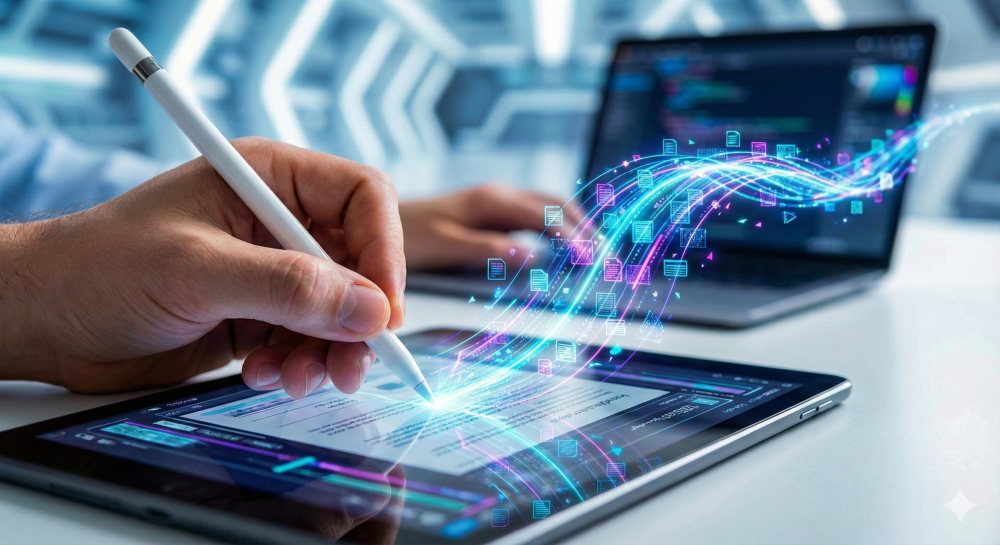
There is something psychologically different about holding a document. When you use an Apple Pencil, you are physically interacting with the words. Annotating PDFs on an iPad mimics the traditional pen-and-paper experience but supercharges it with digital undo buttons.
I found that when I use my iPad, I read more carefully. I circle things. I highlight naturally. I draw arrows that actually look like arrows. If I need to edit pdf content directly, tapping and writing feels intuitive.
The App Ecosystem
Apps like GoodNotes or Notability are fantastic. But even web-based tools work surprisingly well on mobile browsers now. If you need to organize pdf pages—literally rearranging them with your finger—it feels like shuffling a deck of cards. It is satisfying and quick.
However, text input is the bottleneck. Even with the “Scribble” feature, handwriting conversion is slower than typing at 80 words per minute. If you have to write a paragraph of feedback, the iPad on-screen keyboard (or even the Magic Keyboard) can feel slightly more cramped than a full laptop setup.
Pros:
- Superior reading experience (Portrait mode).
- Handwriting and drawing are natural and precise.
- Portable and great for “couch work.”
Cons:
- Typing long comments is slower.
- File management can be tricky without the right cloud setup.
- Multitasking between apps is less fluid than on a laptop.
The Real-World Showdown: A 50-Page Contract
To get real data, I didn’t just guess. I took a standard 50-page lease agreement—dense text, requiring signatures, initials, and comments—and processed it on both devices.
Round 1: The Laptop
I opened the file. I used the “Comment” tool.
- Highlighting: Easy.
- Adding Notes: Fast typing.
- Signatures: I had to use a pre-saved image of my signature because drawing it looked awful. This required me to jpg to pdf my signature file effectively or use a “Sign” tool.
- Time: 24 minutes.
Round 2: Annotating PDFs on an iPad
I opened the file. I grabbed my Pencil.
- Highlighting: A swift strike of the hand.
- Adding Notes: I wrote short marginalia (“Check this,” “Remove”). For longer notes, I dictated using voice-to-text.
- Signatures: I signed naturally on the glass.
- Time: 18 minutes.
The Verdict
The iPad won the speed test by a significant margin. Why? Because the switching cost was lower. On the laptop, every time I wanted to switch from highlighting to commenting to signing, I had to move the cursor to a toolbar, click a tool, and move back. On the iPad, the tool switching was seamless (double-tap the pencil), and the navigation (scrolling) was instantaneous.
Addressing the Pain Points
We need to address a specific pain point for professionals: Workflow Friction.
The biggest issue isn’t the annotation itself; it is the “before” and “after.” Getting the file onto the iPad and getting it off again used to be a nightmare.
- “Where did I save that?”
- “Why is this version not updated?”
To solve this, you need a cloud-first approach. Use Google Drive or Dropbox. Or, use browser-based tools that handle the processing in the cloud.
For instance, if you have a scanned document that is just an image, you can’t highlight text on an iPad or a laptop. You first need to run ocr (Optical Character Recognition). Doing this via a web tool allows you to make the text selectable. Once that is done, annotating PDFs on an iPad becomes a breeze because the highlighter snaps to the text.
When to Use Which?
Consequently, the answer isn’t “one is always better.” It depends on the task.
Choose the Laptop When:
- Heavy Text Editing: If you need to convert the file to an editable format, like pdf to word, do it on a laptop. Editing the core text of a document is miserable on a tablet.
- Data Extraction: If you are pulling numbers from a table to put into a spreadsheet, using a pdf to excel tool is much easier with a mouse and keyboard shortcuts.
- Formatting Overhaul: If the layout is broken and you need to split pdf pages into separate files for reorganization, the precision of a mouse helps.
Choose the iPad When:
- Review and Markup: If you are reading a draft and giving feedback, the iPad is king.
- Signatures: If you need to sign, date, and initial multiple pages.
- Creative Brainstorming: If you are marking up a design or a floor plan.
- Visual Corrections: If you need to draw arrows or diagrams.
Optimizing Your Files for the iPad
If you commit to the iPad workflow, you must prepare your files. iPads have less RAM than laptops. A 500MB PDF loaded with high-res images might crash your annotation app.
Before transferring the file to your tablet, I highly recommend you reduce pdf size. Lossless compression removes unnecessary metadata and optimizes images without ruining the quality. This ensures that when you are scrolling through pages on the iPad, the experience remains buttery smooth.
Additionally, compatibility matters. If you are sending the file to someone else, stick to standard PDF. Don’t use proprietary formats. PDF is the gold standard for a reason. If you have a weird format, convert it. Use a word to pdf converter before you even start the annotation process to lock the formatting in place.
The Hybrid Approach: The Ultimate Efficiency
Here is the secret that power users know: You don’t have to choose. The fastest workflow is actually a hybrid one.
I start on my laptop. I organize my files. If I have a PowerPoint presentation that needs reviewing, I convert it using powerpoint to pdf. This locks the slides so fonts don’t shift.
Then, I save it to a shared cloud folder. I pick up my iPad, open that folder, and do the “deep work”—the reading, the thinking, the annotating PDFs on an iPad. I sign, I highlight, I sketch.
Once finished, I put the iPad down. I go back to the laptop to finalize. Maybe I need to remove pdf pages that were irrelevant or add a cover sheet. Finally, I email it out.
This utilizes the strengths of both devices. The laptop handles the heavy file manipulation; the iPad handles the cognitive and tactile interaction.
Software Recommendations
You don’t need expensive software to make this work. While Adobe is the industry giant, many web-based tools offer these features for free.
- For Conversion: If you have an image of a document, use jpg to pdf or png to pdf.
- For Security: Never forget Cybersecurity. If the document contains sensitive data, ensure your connection is secure (SSL) when using online tools.
- For Presentation: If you annotated a PDF to use in a meeting, you might want to turn it back into a presentation. A pdf to powerpoint tool can save you hours of re-typing.
Conclusion
So, which is faster? For the specific act of reviewing, reading, and marking up, annotating PDFs on an iPad is the clear winner. It is roughly 25-30% faster in real-world testing for signature-heavy and review-heavy tasks. It reduces the friction between your brain and the document.
However, the laptop remains essential for file preparation and heavy text manipulation. The “Pro” move is not to ditch one for the other, but to create a seamless bridge between them.
Stop fighting your tools. If you are trying to sign with a trackpad, stop. If you are trying to type a novel on a glass screen, stop. Use the right tool for the job, and watch your productivity skyrocket.
Your time is valuable. Don’t waste it fighting with a cursor.
Recommended Tools Map
- Need to sign a contract? edit pdf
- File too large for email? compress pdf
- Need to combine notes? combine pdf
- Scanned document? ocr