
Keep PDFSTOOLZ Free
If we saved you time today and found PDFSTOOLZ useful, please consider a small support.
It keeps the servers running fast for everyone.

🔒 100% Secure & Private.
Enhance your productivity today with our professional guide to Edit Pdf With Adobe Acrobat for Authors, tailored specifically for your needs.
If you need a reliable solution for Edit Pdf With Adobe Acrobat for Authors, this guide is for you.
Authors often face a frustrating scenario. You’ve spent months, perhaps years, crafting your manuscript. It’s been reviewed, revised, and finally, saved as a PDF for sharing with beta readers or editors. Then, the inevitable happens: you discover errors, need to make substantial changes, or your editor sends back a marked-up version. But now it’s a PDF. What was once a fluid document now feels…fixed. Editing a PDF directly can seem daunting, even impossible. Fortunately, Adobe Acrobat provides powerful tools to overcome this challenge. This article will guide you through the process, specifically tailored to the needs of authors.


Edit Pdf With Adobe Acrobat for Authors: The Core Challenges
The primary difficulty with editing PDFs stems from their nature. PDFs (Portable Document Format) are designed for presentation, not editing. They prioritize consistent formatting across different devices. This means the text isn’t easily selectable or modifiable like in a word processor. Consequently, attempting to directly alter text in a PDF often leads to formatting issues or simply doesn’t work at all. Many free PDF readers offer limited editing capabilities, usually restricted to filling forms or adding simple annotations. These are insufficient for the comprehensive revisions authors frequently require.
Authors need to make changes ranging from minor typos to significant structural edits. They need to be able to adjust paragraph breaks, rewrite sentences, and even insert or delete entire sections. Moreover, dealing with tracked changes from editors within a PDF is crucial. Adobe Acrobat offers solutions for all these scenarios, providing a robust environment for managing your manuscript’s evolution. It’s a significant investment, but for professional authors, it’s often a necessary one.
Understanding Acrobat’s Editing Tools
Adobe Acrobat isn’t a single “edit” button. It’s a suite of tools. The most important for authors are the “Edit PDF” tool, the “Export PDF” tool, and the “Prepare Form” tool (useful for editor feedback forms). The “Edit PDF” tool allows direct text and image manipulation within the PDF. However, its effectiveness depends on the PDF’s structure. PDFs created directly from word processors (like Microsoft Word) are generally more editable than those scanned from images. Acrobat uses Optical Character Recognition (OCR) to make scanned PDFs editable, but the accuracy isn’t always perfect.
The “Export PDF” tool is incredibly valuable. It allows you to convert your PDF back into a more editable format, such as a Word document. This is often the best approach for substantial revisions. You can then make your changes in Word and save it back as a PDF. Consider using the word to pdf function after editing to maintain formatting. The “Prepare Form” tool is less about editing the manuscript itself and more about creating interactive forms for feedback. This can streamline the review process.
Edit Pdf With Adobe Acrobat for Authors: Direct Editing vs. Exporting
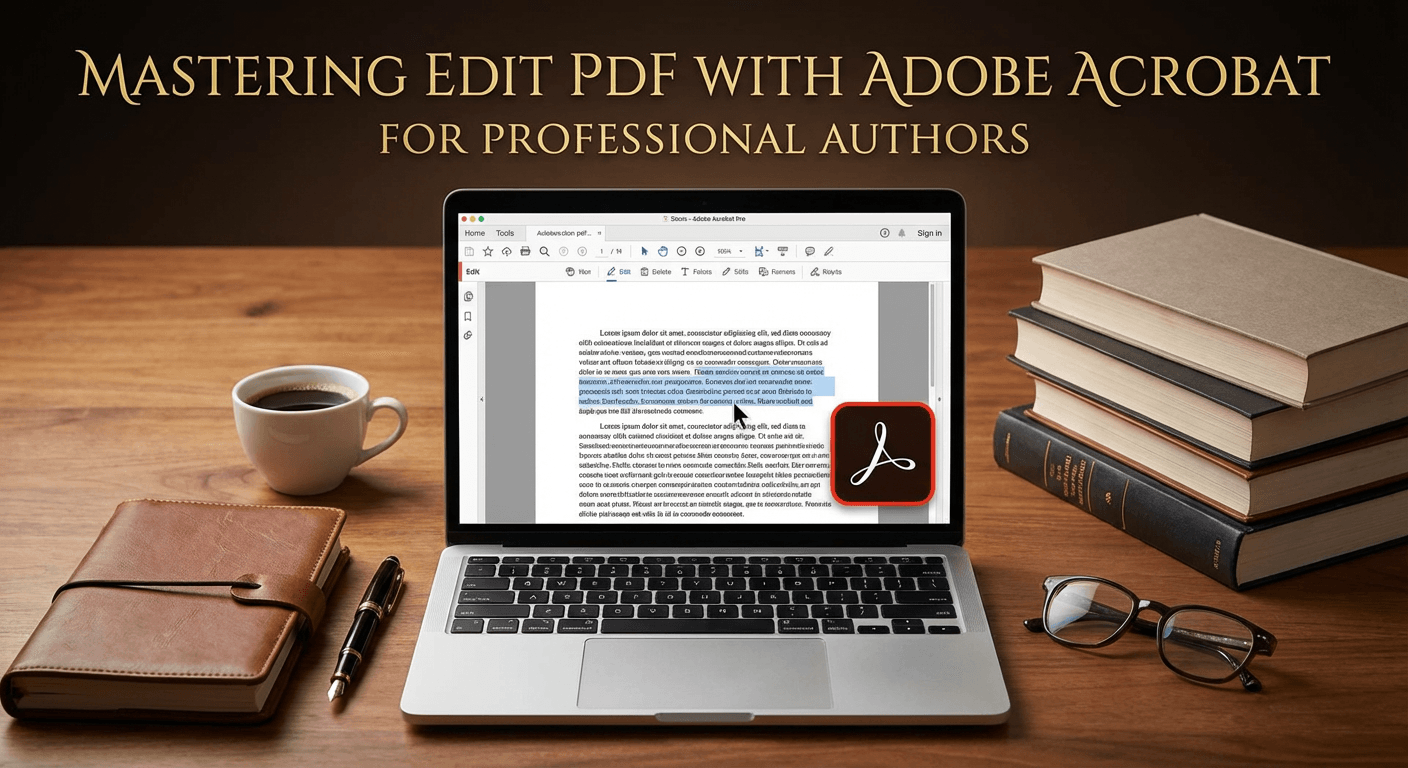
When you open a PDF in Acrobat and select the “Edit PDF” tool, you’ll notice the text becomes selectable. You can click on words and paragraphs to change them. However, be aware that Acrobat may reflow the text to fit the page, potentially altering your formatting. For minor corrections – a few typos, a slightly awkward phrase – direct editing is often sufficient. It’s quick and convenient.
For more extensive changes, exporting to Word is generally recommended. Using the pdf to word conversion feature, Acrobat attempts to recreate the original Word document as accurately as possible. However, complex formatting, tables, and images may not translate perfectly. You’ll likely need to spend some time cleaning up the formatting in Word. Consequently, it’s crucial to have a clean, well-formatted original document before creating the PDF in the first place. This minimizes the amount of cleanup required later.
Another useful feature is the ability to add, delete, or rearrange pages. If you need to delete pdf pages or remove pdf pages, Acrobat makes this straightforward. You can also easily split pdf documents into smaller, more manageable files. This is helpful for dividing a novel into chapters for review or submission.
Working with Tracked Changes and Comments
Editors often return manuscripts with tracked changes and comments. Acrobat excels at handling these. When you open a PDF with tracked changes, Acrobat will display them prominently, allowing you to accept or reject each change individually. You can also filter the view to show only comments, making it easy to address feedback.
Acrobat’s commenting tools are also powerful. You can add text comments, highlight text, draw shapes, and even record audio comments. This allows for detailed and nuanced communication with your editor. Moreover, you can create custom stamps to mark specific sections of the manuscript. This is particularly useful for indicating areas that require further attention.
Edit Pdf With Adobe Acrobat for Authors: Optimizing Your PDF Workflow
To maximize efficiency, establish a clear workflow. First, always keep a master copy of your manuscript in a word processor format (like Microsoft Word or Google Docs). Avoid editing directly in the PDF unless it’s for minor corrections. Second, when sharing your manuscript for review, consider using Acrobat’s commenting and markup tools instead of relying solely on tracked changes in Word. This ensures everyone is working within the same environment.
Third, regularly save your work. Acrobat has an auto-save feature, but it’s always best to manually save frequently. Fourth, learn to use Acrobat’s search function effectively. This allows you to quickly locate specific words or phrases within your manuscript. Finally, consider optimizing your PDF for file size. Large PDFs can be difficult to share and download. You can use Acrobat’s compress pdf feature or reduce pdf size options to minimize the file size without sacrificing quality.
Sometimes, you might need to combine multiple PDFs into a single document. Acrobat’s merge pdf or combine pdf functionality makes this easy. This is useful for consolidating feedback from multiple sources or combining different sections of your manuscript. Remember to always back up your original files before making any significant changes.
Ultimately, Adobe Acrobat is a powerful tool that can significantly streamline the editing process for authors. While it has a learning curve, the time invested in mastering its features will pay off in increased efficiency and a more polished final product. Don’t be afraid to explore the various tools and features to find what works best for your individual workflow.
By understanding the strengths and limitations of Acrobat, and by establishing a clear workflow, you can confidently tackle any editing challenge that comes your way. Your manuscript deserves the best possible care, and Adobe Acrobat can help you provide it.