
Keep PDFSTOOLZ Free
If we saved you time today and found PDFSTOOLZ useful, please consider a small support.
It keeps the servers running fast for everyone.

🔒 100% Secure & Private.
For years, a specific line item on my monthly credit card statement caused a slight twinge of annoyance. It was the subscription fee for Adobe Acrobat Pro. Like many professionals, I considered it an unavoidable tax for doing business in a digital world dominated by the PDF format. Adobe, after all, practically invented the standard. They offered the most robust set of tools for editing, signing, converting, and managing documents.
However, as the subscription prices slowly crept upward, I began to question the value proposition. Was I truly utilizing the full suite of advanced features every single month? The honest answer was no. Most days, I needed to quickly combine a few documents, convert a Word file to PDF for a client, or make a minor text correction. Paying a premium monthly fee for occasional light usage started to feel less like a necessity and more like a bad financial habit. Consequently, I decided to cancel my subscription and venture into the world of freemium and open-source tools. This post details my journey and highlights the excellent free alternatives to Adobe Acrobat Pro that I now use daily.
The Real-World “Breakup” Moment with Adobe
The decision to finally cut the cord wasn’t based on slow resentment alone; there was a specific incident that broke the camel’s back. I was working against a tight deadline to submit a project proposal. The client sent over a last-minute addendum in a separate PDF that needed to be merged into the main document, and I also spotted a typo on the pricing page that needed immediate correction.
I opened Acrobat Pro, ready to make these quick edits. Instead of the interface, I was greeted by a mandatory software update window. It refused to let me proceed without downloading a massive patch. Ten minutes ticked by—an eternity when a deadline looms—while the software updated and subsequently demanded a system restart.
By the time my computer rebooted and Acrobat finally opened, my stress levels were through the roof. That entire ordeal to perform two simple tasks—merging and minor text editing—should have taken thirty seconds. In that moment of frustration, I realized the software was hindering my workflow rather than helping it. The friction of the tool, combined with the ongoing cost, was simply no longer justifiable for my needs.
Weighing the Options: Adobe Acrobat Pro Pros and Cons
Before diving into the alternatives, it is only fair to acknowledge what Adobe brings to the table. It is the industry gold standard for a reason. However, for the average user, the cons often outweigh the pros.
Pros
- Comprehensive Feature Set: It can literally do almost anything related to PDFs, including complex form creation and high-end print production preflight.
- Standardization: As the creator of the PDF format, Adobe ensures perfect compatibility and rendering across devices.
- Ecosystem Integration: It integrates seamlessly with other Adobe Creative Cloud apps like Photoshop and InDesign.
- Advanced Security: It offers robust redaction and encryption tools that enterprise-level businesses require.
Cons
- High Subscription Cost: The monthly recurring fee is significant, especially if you aren’t using advanced features daily.
- Software Bloat: The application is heavy on system resources, often runs slow on older machines, and requires frequent, large updates.
- Overwhelming Interface: For simple tasks, the sheer number of menus and tools can be distracting and unintuitive for casual users.
- Difficult Cancellation: Anecdotally, navigating the cancellation process can sometimes be frustratingly complex.
Finding Viable Free Alternatives to Adobe Acrobat Pro
Once I decided to leave, the challenge was finding tools that didn’t just claim to be free but were actually functional. The internet is littered with “free PDF editors” that are actually just trials, watermark your documents, or have severely limited file size caps.
My criteria for finding suitable replacements were strict. First, they had to be genuinely free for basic tasks. Second, they needed to handle the core functions I used 90% of the time: merging documents, converting to and from Microsoft Office formats, and basic page organization. Finally, they had to be secure and respectful of user data. After weeks of testing, I found that a combination of different tools actually served my needs better than one monolithic program.
Top 5 Free Alternatives That Actually Work
There is no single “magic bullet” free app that does exactly everything the paid version of Acrobat does. However, by using a combination of specialized tools, you can easily replicate the workflow for zero cost. Here are the five best free alternatives to Adobe Acrobat Pro that I rely on now.
1. PDFStoolz: The All-in-One Web Solution
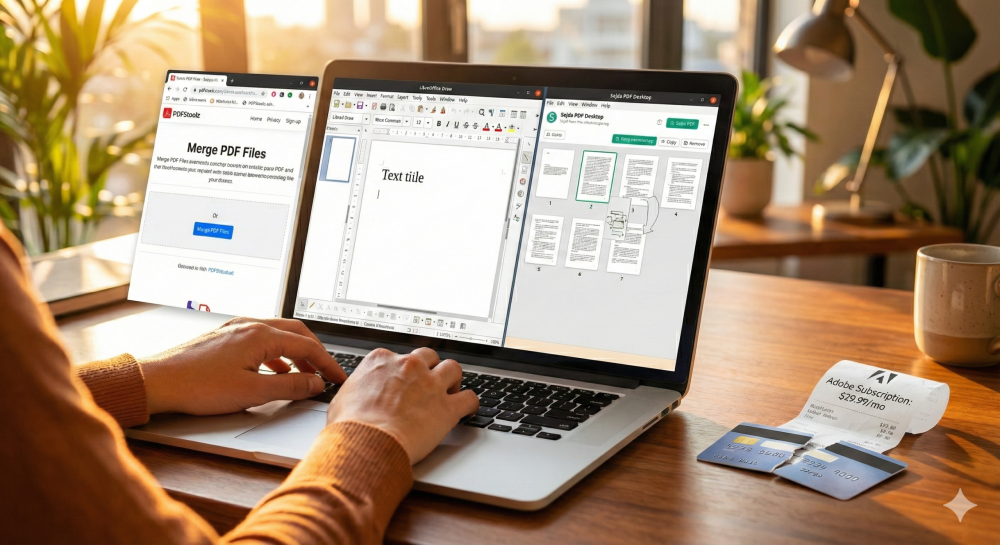
When I need fast results without installing software, I turn to web-based platforms. My go-to now is PDFStoolz. It’s a comprehensive suite of browser-based tools designed to handle the most common PDF tasks quickly and efficiently.
What I appreciate most about PDFStoolz is the straightforward interface. There are no complex menus to navigate. If I need to turn a client’s contract into an editable format, I just head to the PDF to word tool. It handles the conversion impressively well, maintaining layout integrity better than many desktop apps I’ve used.
Furthermore, document compilation is a breeze. When I have multiple reports that need to be sent as a single package, the merge PDF function allows me to drag and drop files, reorder them, and combine them in seconds. It’s significantly faster than waiting for a heavy desktop application to load. It has effectively replaced about 70% of what I used Adobe for.
2. LibreOffice Draw: For Real Text Editing
One of the biggest myths is that you cannot truly edit the text in a PDF for free. Most “free editors” only allow you to add annotations or text boxes over existing content. They don’t let you fix a typo in a paragraph.
LibreOffice Draw is the exception and a powerful hidden gem. While LibreOffice is known as an open-source alternative to Microsoft Office, its “Draw” component is surprisingly capable of opening PDFs and treating text as editable vector objects.
When you open a PDF in LibreOffice Draw, you can click right into a text block and correct spelling errors, delete sentences, or change fonts just as you would in a word processor. It isn’t perfect for massive layout changes, but for fixing typos like the one in my “real-world example” earlier, it is an absolute lifesaver. It is the closest free experience to Adobe’s text editing feature.
3. Sejda PDF Desktop: The Freemium Powerhouse
While web tools are great, sometimes you need a desktop application for working offline or handling sensitive documents you don’t want to upload to a server. Sejda PDF offers both a web version and a desktop version that is excellent for daily tasks.
Sejda operates on a “freemium” model. The free version has daily limits on tasks and file sizes (e.g., 3 tasks per day, files up to 50MB). For light users, these limits are rarely an issue. The interface is incredibly clean and modern, making it very user-friendly.
I use Sejda specifically when I need to visualize a document’s structure. Its visual tools allow you to easily delete pages, rotate them, or re-order them within a document. If you need to organize PDF pages visually before finalizing a report, Sejda’s desktop app is a fantastic, lag-free option.
4. iLovePDF: For Quick Conversions and Compression
Similar to PDFStoolz, iLovePDF is another wildly popular web-based suite. It has gained a massive following due to its reliability and speed. While I use PDFStoolz for my main tasks, I keep iLovePDF bookmarked as a reliable backup.
Where iLovePDF really shines is file compression. Adobe Acrobat is notorious for creating bloated PDF files. If you need to email a document that is just over the attachment limit, iLovePDF’s compression tool does an excellent job of reducing file size without noticeably degrading image quality.
Additionally, their conversion engines are very strong. If you need to convert an Excel spreadsheet into a PDF for a non-editable presentation, their tools handle the formatting quite well. It’s a great utility belt for quick fixes.
5. Modern Web Browsers (Edge & Chrome): The Built-In Viewers
It is easy to forget that the best tool for simply viewing or filling out basic forms is probably already open on your computer. Modern web browsers like Microsoft Edge and Google Chrome have dramatically improved their built-in PDF capabilities.
Microsoft Edge, in particular, has excellent annotation features built right in. You can highlight text, draw notes with a stylus, and even have the document read aloud. For quickly reviewing a document and making notes for later, you don’t need separate software at all.
Furthermore, if you use Google Drive, you have access to built-in OCR (Optical Character Recognition). If you upload an image-based PDF or a scanned document to Drive, you can right-click and choose “Open with Google Docs.” Google will attempt to extract the text from the image, allowing you to edit it. It’s a rough conversion, but incredibly useful for getting usable text out of a locked-down scan.
How to Choose the Right Combination for You
Making the switch from Adobe Acrobat Pro doesn’t mean settling for frustration. It means understanding your actual needs.
If your primary need is converting documents between formats like Word and PDF, a high-quality web tool like PDFStoolz is likely all you need. If you frequently need to fix typos in existing documents without messing up the layout, you should install LibreOffice. For visual reorganization and offline security, keep Sejda Desktop handy.
By combining two or three of these free alternatives to Adobe Acrobat Pro, you can build a customized, powerful workflow that covers all your bases without costing you a dime every month.
Conclusion
Leaving the Adobe ecosystem felt like a risk initially. I was worried about compatibility issues and losing access to vital tools. However, after several months of using this new stack of free software, I haven’t looked back once.
I no longer dread massive, ill-timed software updates. My computer runs smoother without the background Adobe processes, and most importantly, I’m saving hundreds of dollars a year. The market for PDF tools has matured significantly. High-quality PDF management is no longer behind a premium paywall. I encourage you to audit your own usage. If you aren’t using advanced print production or enterprise security features daily, try these alternatives. You might find that the best things in digital life really are free.