
Keep PDFSTOOLZ Free
If we saved you time today and found PDFSTOOLZ useful, please consider a small support.
It keeps the servers running fast for everyone.

🔒 100% Secure & Private.
Have you ever downloaded a massive textbook or a comprehensive report, only to find that your computer freezes every time you try to scroll? It is a universally frustrating experience. Furthermore, trying to email a 500MB file to a colleague or professor is often impossible due to attachment limits. Consequently, you are left stuck with a digital brick that is hard to manage. However, there is a simple solution. The answer lies in splitting a large e-book into chapters.
By breaking down a massive file, you regain control over your digital library. Moreover, you can share only what is necessary. In this guide, we will explore the easiest, free method for splitting a large e-book into chapters without downloading heavy software. Let’s be real; nobody wants to pay for a subscription just to separate page 50 from page 500. Therefore, we will focus on efficient, cloud-based tools that get the job done instantly.
Why You Need to Start Splitting a Large E-Book into Chapters
You might be wondering if the effort is worth it. Honestly, keeping a file intact seems easier at first glance. However, as soon as you try to read on a mobile device or a slow tablet, the lag becomes unbearable. Splitting a large e-book into chapters significantly reduces the processing power required by your device.
Additionally, consider the workflow benefits. If you are a student, you likely only need one specific module for your upcoming exam. Why scroll through 800 pages of irrelevant data? By using a tool to split pdf, you isolate exactly what you need. Consequently, your focus improves because distractions are removed.
The Hidden Benefits of File Segmentation
Beyond just speed, there is the issue of safety and corruption. Large files are notoriously prone to corruption during transfer. If a 1GB file fails to download at 99%, you have lost everything. Conversely, if you are downloading just Chapter 3, the risk is minimal.
Moreover, smaller files are easier to annotate. If you use a tablet to take notes, a smaller file responds faster to your stylus input. Therefore, splitting a large e-book into chapters is not just about storage; it is about the user experience.
If you ever make a mistake and split too much, do not worry. You can always use a tool to merge pdf files back together later. Flexibility is key here.
The Old Way vs. The Modern Method
In the past, managing PDF files required expensive software like Adobe Acrobat. You had to install a heavy program, pay a monthly fee, and navigate a complex interface. For most users, this was overkill.
However, the internet has evolved. Now, we have browser-based solutions that handle Data Compression and file manipulation in seconds. These tools maintain the quality of your documents while stripping away the bulk.
For example, you might want to convert a section of your book into a different format after splitting it. Once you have your chapter isolated, you could easily convert that pdf to word for editing. This workflow was previously impossible without premium software. Now, it is accessible to everyone.
Step-by-Step Guide: Splitting a Large E-Book into Chapters
Let’s get into the meat of the process. We are going to use a free online method because it is the most accessible route. This method works whether you are on Windows, Mac, or even a Chromebook.
Step 1: Prepare Your File
First, locate your file. Ensure it is not password-protected. If it is, you will need the password to unlock it before editing. Furthermore, check the file name. It helps to rename the original file to “Master Copy” so you never accidentally overwrite the original.
Step 2: Upload to the Splitter
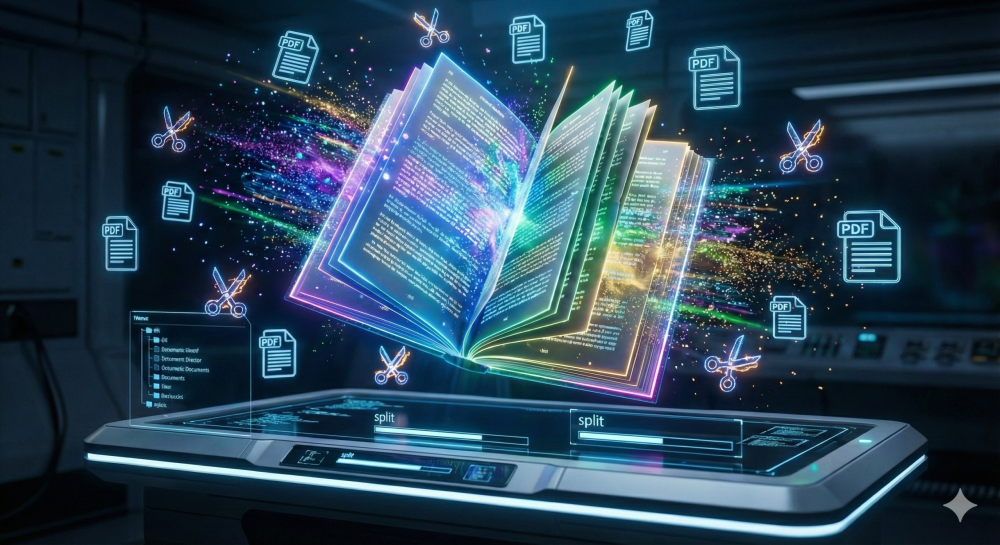
Navigate to a reliable splitting tool. You can find the split pdf tool on our site. Click the upload button or drag and drop your file.
Because these tools use Cloud Storage technology, the upload should be fast, depending on your internet connection.
Step 3: Select Your Split Points
This is where the magic happens. You will typically see two options:
- Split by Range: You enter specific page numbers (e.g., 1-50, 51-100).
- Extract Pages: You click on specific pages you want to keep.
For the purpose of splitting a large e-book into chapters, the “Range” mode is superior. Look at your e-book’s table of contents. Note down the page numbers where each chapter starts and ends.
Pro Tip: If your e-book has introductory pages (Roman numerals i, ii, iii), the digital page counter might be slightly offset from the printed page numbers. Always double-check the visual preview.
Step 4: Execute the Split
Once your ranges are set, hit the “Split” button. The server processes the request. Because this happens in the cloud, it does not drain your computer’s RAM.
Step 5: Download and Organize
Finally, download your new files. They will usually come in a ZIP folder. Unzip them and rename each file immediately (e.g., “Physics_Textbook_Chapter_1”). This organization is crucial. If you have extra pages you don’t need, simply delete pdf pages using the appropriate tool to keep things clean.
Real-World Example: Sarah’s Thesis Crisis
Let me share a story about a user named Sarah. Sarah is a history major. She was working on her final thesis regarding the Industrial Revolution. She found a perfect primary source—a scanned collection of newspapers from 1850 to 1900.
However, the file was a massive 2GB PDF. It was scanned at a high Resolution, meaning every time she tried to open it on her laptop, her fan would spin like a jet engine, and Word would crash. She was panicked.
She tried to compress pdf, but the file was still too large to manage effectively. That is when she decided to try splitting a large e-book into chapters—or in her case, into decades.
She uploaded the massive file. She set the ranges: 1850-1860, 1861-1870, and so on. Within minutes, she had five manageable files, each around 400MB.
Consequently, she could open the “1860s” file to write that specific section of her paper without lagging. Furthermore, she was able to send just the “1890s” section to her professor for review without using a third-party transfer service like Dropbox. This simple trick saved her thesis.
Handling Images and Formatting During the Split
A common concern when splitting a large e-book into chapters is the loss of formatting. People worry that images will break or text will shift.
Fortunately, modern PDF standards (maintained by ISO Standards) ensure that “splitting” is actually just “copying” data to a new container. The internal structure remains identical.
However, if your e-book is image-heavy (like a comic book or a design portfolio), the file size might still be high even after splitting. In this case, after splitting, you should consider using a tool to reduce pdf size.
Additionally, if you need to extract specific images from a chapter, you don’t need to screenshot them. You can convert the pdf to jpg or pdf to png to get high-quality image files for your projects.
Pros and Cons of Splitting E-Books
To give you a balanced view, let’s look at the advantages and disadvantages. I believe in total transparency so you can make the best decision for your workflow.
| Feature | Pros | Cons |
| Manageability | Smaller files load instantly on all devices. | You have more individual files to keep track of. |
| Sharing | Easy to email specific chapters. | You might lose the context of the whole book if not careful. |
| Safety | Corruption only affects one chapter, not the whole book. | Requires an initial time investment to set up ranges. |
| Editing | Easier to edit pdf content in small chunks. | Links between chapters (internal hyperlinks) may break. |
| Conversion | Faster to convert pdf to excel or other formats. | You must ensure you have the original “Master” file saved. |
Advanced Tips for Power Users
If you have mastered the basics of splitting a large e-book into chapters, you can try some advanced techniques.
OCR Integration
Sometimes, split chapters are just images (scans). If you need to search text within your new chapter, you must use OCR. By running your split file through an ocr tool, you make the text selectable and searchable. This is a game-changer for students.
Reordering for Custom Study Guides
Imagine you are studying for a biology test. You need Chapter 3, Chapter 7, and Chapter 12. You can split the book to get these chapters. Then, surprisingly, you can use the combine pdf tool to merge only those three chapters into a new “Study Super-Guide.”
This creates a custom textbook tailored exactly to your curriculum. It is efficient and smart.
Converting for Presentation
Often, professionals need to present a single chapter of a report. Instead of showing the PDF, split the chapter first. Then, convert that specific pdf to powerpoint. This preserves the layout but gives you editable slides. It looks much more professional than scrolling through a document on a projector.
Troubleshooting Common Issues
Even the best tools have occasional hiccups. Here is how to solve them when splitting a large e-book into chapters.
” The File is Too Big to Upload”
If your internet connection times out, the file is likely massive. In this scenario, try to compress pdf first to shrink the initial size, then try splitting it. Alternatively, use a wired internet connection for better stability.
“My Page Numbers Don’t Match”
As mentioned earlier, digital page 1 is often the cover, not page 1 of the text. Always verify page counts visually. If the order gets messed up, you can use an organize pdf tool to drag and drop pages into the correct sequence.
“I Lost the Original File”
This is why we renamed the source file “Master Copy” in Step 1! However, if you didn’t do that, check your “Downloads” folder or your recycle bin. Always keep a backup on Google Drive or an external hard drive.
Security and Privacy Considerations
When uploading documents to any web service, security is a valid concern. Reputable tools use SSL encryption to protect your data during transfer. Furthermore, they typically delete files from their servers automatically after a few hours.
However, if you are working with highly sensitive legal or medical documents (involving GDPR data), be mindful. For general textbooks and e-books, these free online tools are perfectly safe and efficient.
Why This Method Beats “Print to PDF”
Some people try to use the “Print to PDF” function in their browser to split files. While this works for simple documents, it is terrible for e-books.
Why? Because “Print to PDF” often flattens the document. You lose hyperlinks, bookmarks, and Metadata.
In contrast, using a dedicated split pdf tool preserves the underlying structure. It keeps the text crisp and the images sharp. Do not settle for the “Print” method if you care about quality.
Conclusion
We have covered a lot of ground. We discussed the frustration of huge files and the relief that comes from splitting a large e-book into chapters. We looked at the step-by-step process, a real-world example, and even some advanced tricks for power users.
Ultimately, managing your digital library shouldn’t be a headache. By utilizing free, online tools, you can transform a cumbersome 1,000-page monster into a sleek, organized series of chapters. Whether you are a student, a professional, or just an avid reader, this method is designed for you.
So, what are you waiting for? Go find that massive file that has been slowing down your tablet. Give it a try. Use the split pdf tool today and experience the difference. You will wonder how you ever managed without it.