
Keep PDFSTOOLZ Free
If we saved you time today and found PDFSTOOLZ useful, please consider a small support.
It keeps the servers running fast for everyone.

🔒 100% Secure & Private.
If you need to turn photos of homework into pdf files for your next assignment, you have come to the right place. It is 11:50 PM, your assignment is due at midnight, and you are staring at five loose pages of handwritten calculus notes. You snap a few quick pictures with your phone, ready to upload them, but then you see the dreaded error message on your school portal: “File type not supported. Please upload a PDF.”
This is a scenario every modern student faces. Whether you are submitting to Google Classroom, Canvas, or Blackboard, the requirement is always the same: they want a single, clean document. They do not want 10 separate JPG images. In this comprehensive guide, we will teach you exactly how to turn photos of homework into pdf format quickly, for free, and without using complex software.
Why You Must Turn Photos of Homework Into PDF for School
Before we look at the tools, it is vital to understand why professors insist on this format. You might wonder, “Why can’t I just send the pictures?” The reality is that when you turn photos of homework into pdf, you are solving three specific problems that often frustrate teachers.
1. The Formatting Nightmare
When you upload raw images, they often arrive in your teacher’s inbox as a disorganized mess. Depending on the device they use to grade (iPad, laptop, or desktop), your photos might appear sideways, upside down, or zoomed in too far. A PDF (Portable Document Format) locks the formatting in place. What you see on your screen is exactly what your teacher sees on theirs. By taking the time to turn photos of homework into pdf, you ensure your hard work is actually readable.
2. File Size Restrictions
High-quality smartphone cameras today take massive photos. A single clear image of a worksheet can easily be 5MB or larger. If your homework assignment is ten pages long, that is a 50MB email attachment—which most email servers will reject immediately. When you use a proper tool to turn photos of homework into pdf, efficient compression algorithms reduce that file size significantly without making the text blurry.
3. Learning Management System (LMS) Limits
Platforms like Canvas, Blackboard, and Moodle are designed to handle documents, not galleries of images. Many of these systems have automatic plagiarism checkers and grading tools that can scan text inside a PDF but cannot read text inside a flat JPG image. If you do not turn photos of homework into pdf, the auto-grader might give you a zero simply because it couldn’t “see” your answers.
Step-by-Step: How to Turn Photos of Homework Into PDF
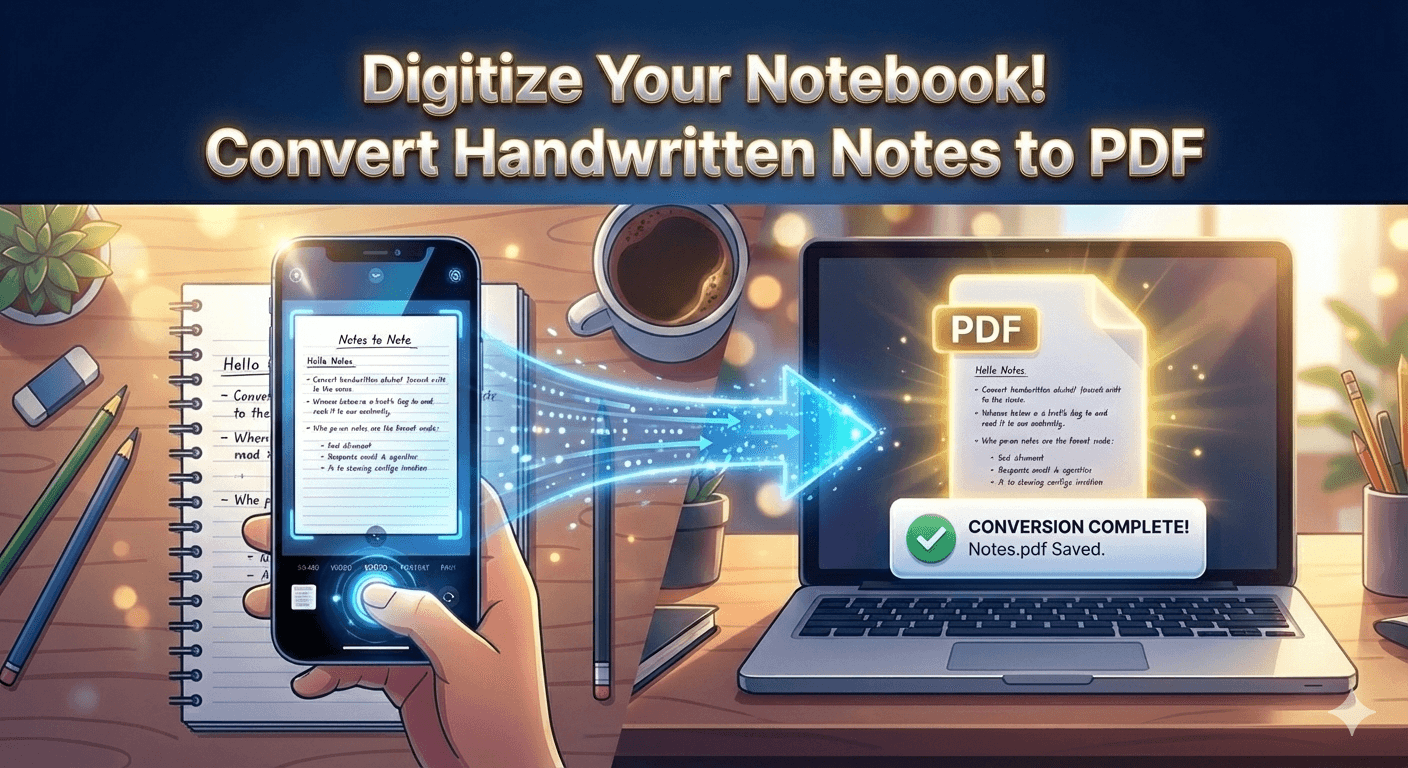
The good news is that you do not need a bulky scanner or expensive software like Adobe Acrobat Pro to do this. You have everything you need right in your pocket. Here is the foolproof process to turn photos of homework into pdf using our free, browser-based tool.
Phase 1: Taking the Perfect Photo
Garbage in, garbage out. If your original photos are blurry or dark, converting them to PDF won’t save your grade. Follow these rules for a perfect scan:
- Find the Light: Never rely on your room’s overhead yellow bulb. It creates harsh shadows of your hand over the paper. The best light is natural sunlight. Move your desk near a window.
- Contrast is Key: Place your white paper on a dark background (like a dark desk or a bedspread). This helps the camera autofocus on the page edges.
- Hold Steady: Blur is the enemy. Hold your phone with two hands, keep your elbows tucked against your ribs for stability, and tap the screen to focus on your handwriting before snapping the shot.
- Go Vertical: Always take the photo from directly above, looking straight down. Shooting from an angle will distort the text and make it look “warped.”
[ 📷 UPLOAD IMAGE HERE: A student taking a photo of a notebook with good lighting ]
- Image Alt Text:
Student preparing to turn photos of homework into pdf by taking clear picture
Phase 2: Using PDFSTOOLZ to Merge and Convert
Now that you have your images, it is time to combine them.
- Open the Tool: Navigate to PDFSTOOLZ.com on your phone or computer.
- Select “JPG to PDF”: You will see several options. Choose the image converter tool.
- Upload Your Files: Tap “Select Files” and choose all the photos you just took from your gallery. You can select multiple images at once.
- Organize Your Pages: This is crucial. Ensure Page 1 is first, Page 2 is second, etc. Our tool allows you to drag and drop to reorder them if they got mixed up.
- Convert: Click the button to turn photos of homework into pdf.
- Download: Within seconds, your file is ready. Save it to your “Files” or “Downloads” folder.
You now have a single, professional document named something like homework-merged.pdf instead of IMG_4829.jpg.
Comparing Methods to Turn Photos of Homework Into PDF
You might be wondering if there are other ways to handle this task. Yes, there are, but they often come with significant downsides compared to using a dedicated online converter like PDFSTOOLZ.
Method A: Pasting into Microsoft Word/Google Docs
Some students try to paste their images into a Word document and then save that as a PDF.
- The Problem: This is incredibly slow. Formatting images in Word is frustrating; they jump around the page, leave massive white gaps, or get resized incorrectly. It is time-consuming and often results in a messy layout that frustrates professors.
Method B: Mobile Scanning Apps (CamScanner, etc.)
There are hundreds of “scanner” apps on the App Store.
- The Problem: Most “free” scanner apps add a giant, ugly watermark to the bottom of your homework (e.g., “SCANNED WITH CAMSCANNER”). This looks unprofessional. Furthermore, many of these apps restrict how many pages you can scan before demanding a monthly subscription. Our tool allows you to turn photos of homework into pdf for free, with no watermarks.
Method C: Native Phone Features (Notes App)
iPhone users can scan documents using the Notes app.
- The Problem: While convenient, the resulting PDF often gets buried in your iCloud folders, making it hard to find and upload to a specific web portal like Canvas on a deadline. It also offers fewer compression options if the file size turns out too large.
Troubleshooting Common Issues When You Turn Photos of Homework Into PDF
Even with the best tools, things can go wrong. Here is how to fix the most common issues students face during the submission process.
“My PDF file is too big to upload!”
This is the #1 complaint. If your university portal has a 5MB limit and your PDF is 20MB, you are stuck.
- The Fix: After you turn photos of homework into pdf, use our Compress PDF Tool. This tool intelligently removes unnecessary metadata and simplifies the image data without making your handwriting unreadable. It can often reduce file size by 50-80%.
“The pages are sideways!”
Did you take the photo in landscape mode, but now you have to twist your head to read it on the computer?
- Organize PDF. The Fix: Don’t rescan everything. Use the Organize PDF Tool on our site. You can rotate individual pages 90 degrees to ensure everything is upright before submission.
“The text is too dark/grey.”
This usually happens when you take photos in bad lighting.
- The Fix: If you cannot retake the photo, try editing the photo in your phone’s gallery before uploading it. Use the “Black and White” or “Noir” filter. This removes the yellow/grey shadows and turns the background stark white and the ink stark black, making it look much more like a real scanned document.
Platform-Specific Guides to Turn Photos of Homework Into PDF
Different schools use different systems. Here is a quick breakdown of how to handle the upload process for the major platforms.
How to Upload to Canvas
Canvas is one of the most popular LMS platforms used by universities globally.
- Open the Canvas Student App or website.
- Navigate to “Assignments” and tap the specific homework.
- Tap “Submit Assignment” > “File Upload.”
- Select the PDF you just created from your device storage.
- Pro Tip: Always verify the submission. Canvas will usually show you a preview. If the preview looks good, you are safe.
How to Upload to Google Classroom
Many high schools utilize Google Classroom for digital assignments.
- Open the assignment in the Classroom app.
- Swipe up for “Your Work.”
- Tap “Add Attachment” > “File.”
- Do not tap “Pick Photo.” Tap “File” to browse for the PDF you created.
- Wait for the blue bar to finish loading, then tap “Turn In.”
How to Upload to Blackboard
- Open the assignment link.
- Look for “Attach Files” > “Browse Local Files.”
- Select your merged PDF.
- Click “Submit.”
- Note: Blackboard often sends an email receipt. Keep this! It is your proof that you submitted the work on time.
Why Security Matters When You Turn Photos of Homework Into PDF
When you upload your homework to the internet, you are often dealing with sensitive information. Maybe your student ID number is written on the page, or perhaps it is a personal essay containing private details.
You should be wary of untrustworthy apps that might store your data. At PDFSTOOLZ, we prioritize user privacy. Files are processed securely, and we do not claim ownership of your intellectual property. Your homework remains yours. This is a critical consideration when choosing which tool to use. Avoid shady, pop-up-filled sites that might infect your device with malware right before a deadline.
Advanced Tips for the Perfect 4.0 GPA Submission
If you want to impress your professor, go the extra mile.
- Naming Conventions: Never submit a file named
Untitled_Scan_1.pdf. Always name your file clearly:LastName_FirstName_Assignment3.pdf. This makes it easier for your teacher to organize their grading, and they will subconsciously appreciate your professionalism. - Check the Order: Before you hit submit, open the PDF yourself. Did you accidentally put Page 3 before Page 2? It happens more often than you think. Using a tool that lets you rearrange pages before you finalize the PDF is essential.
- Annotate if Needed: Sometimes, after you turn photos of homework into pdf, you realize you forgot to write your name on the paper. Instead of rewriting it, you can use a PDF Editor tool to type your name directly onto the digital document header.
Frequently Asked Questions (FAQ) about How to Turn Photos of Homework Into PDF
Q: Can I turn photos of homework into pdf on an iPhone? A: Yes! Our tool works entirely in the Safari or Chrome browser on your iPhone. You do not need to download an app from the App Store.
Q: Is it free to turn photos of homework into pdf? A: On PDFSTOOLZ, yes. We believe students shouldn’t have to pay to submit their homework. All our basic tools are 100% free to use.
Q: What if I have 50 pages of homework? A: No problem. Our merger tool can handle large documents. However, for extremely large files (50+ pages), we recommend converting them in batches (e.g., 25 pages and 25 pages) and then merging those two PDFs together for the fastest processing speed.
Q: Will the quality decrease when I convert? A: Our tool is optimized to maintain the legibility of handwriting. While we compress the file size to help you upload it, we prioritize keeping the text sharp and readable.
Conclusion
The days of frantically trying to email five different blurry JPGs to your teacher are over. Mastering the ability to turn photos of homework into pdf is a fundamental digital skill for any modern student. It saves you time, ensures your work looks professional, and guarantees that your teacher can actually read (and grade!) the answers you worked so hard on.
Don’t wait until 11:59 PM to figure this out. Bookmark this page now. Next time you have a stack of handwritten calculus problems or a history essay, you will be ready to snap, convert, and submit in seconds.
Ready to transform your workflow?