
Keep PDFSTOOLZ Free
If we saved you time today and found PDFSTOOLZ useful, please consider a small support.
It keeps the servers running fast for everyone.

🔒 100% Secure & Private.
You have just finished the perfect design. The fonts are crisp, the images are vibrant, and the layout is flawless on your desktop monitor. Confidently, you email it to a client or upload it to your website. Five minutes later, you get the dreaded text message: “I can’t read this on my phone.” You check it yourself, and sure enough, you see a blurry PDF on mobile. It is pixelated, fuzzy, and unprofessional.
Why does this happen? Moreover, how can you stop it from destroying your document’s credibility?
In this guide, we will dive deep into the technical and practical reasons behind mobile rendering issues. We will look at compression, resolution, and the “raster vs. vector” war. Furthermore, I will share a real-world example of how this problem nearly cost a business owner thousands of dollars. Finally, we will fix it.
The Real Cost of a Blurry PDF on Mobile
First, let’s be honest. A blurry document isn’t just an annoyance; it is a trust killer. When a user opens a file that looks terrible, they assume the business is terrible.
I remember a client named Marco. Marco owns a high-end bistro in Milan. During the post-pandemic shift, he moved entirely to QR code menus. He designed a beautiful menu in Photoshop, exported it, and printed the QR stickers.
However, he didn’t check the mobile view.
On a desktop, the PDF looked fine. On a smartphone, specifically an iPhone with a Retina display, the text was a jagged mess. Customers couldn’t read the prices. They couldn’t read the ingredients. Consequently, they got frustrated. Marco didn’t just have a blurry PDF on mobile; he had a friction point that was actually costing him drink orders.
We fixed it in ten minutes. But, he had already printed 500 stickers. The lesson? Mobile optimization is not optional. It is essential.
Understanding Why You Have a Blurry PDF on Mobile
To fix the problem, you must understand the mechanics. It usually boils down to three culprits: aggressive compression, low resolution (DPI), or the wrong file format.
The Resolution Trap: DPI Explained
DPI stands for “Dots Per Inch.” In the old days of the internet, 72 DPI was the standard for screens. If you saved an image at 72 DPI, it looked great on a chunky CRT monitor.
However, modern mobile phones are different. They use “Retina” or high-density displays. These screens pack 300, 400, or even 500 pixels into a single inch.
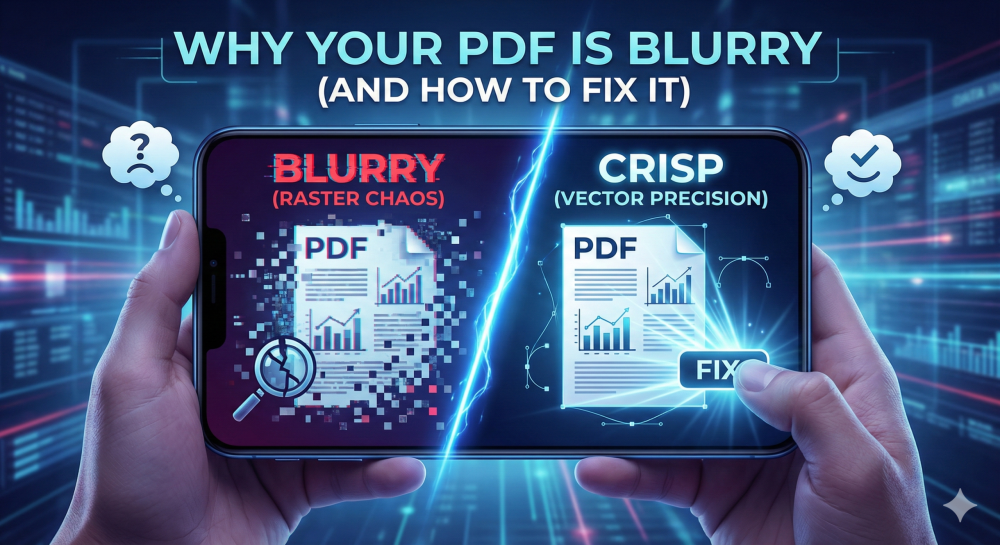
Therefore, if you display a 72 DPI document on a 400 PPI (Pixels Per Inch) screen, the phone has to “stretch” the data. It guesses what the missing pixels should look like. The result is blur. If your text is saved as an image (raster) rather than a mathematical formula (vector), you will inevitably end up with a blurry PDF on mobile.
Compression: The Silent Killer
We all want small file sizes. No one wants to download a 50MB menu over 4G data. So, we use tools to reduce pdf size.
However, many compression tools work by throwing away data. This is called “lossy” compression. They look at your crisp logo and say, “Eh, close enough.” On a laptop, you might not notice. But on a phone, where you pinch-to-zoom, those compression artifacts become huge, ugly blocks.
If you aggressively compress pdf files without adjusting the settings for text clarity, you are trading readability for speed. Ideally, you want a balance.
Vector vs. Raster: The Technical Root Cause
This is the most important section of this post. If you understand this, you will never create a blurry PDF on mobile again.
Raster Images (The Enemy of Text)
Raster images are made of a grid of colored squares (pixels). Formats like JPG and PNG are raster. If you zoom in on a raster image, you see the squares. It gets blocky.
Vector Graphics (The Hero of Text)
Vectors are not pixels. They are math. A vector line is defined by points and curves relative to each other. Whether you display it on a stamp or a billboard, the math recalculates, and the line stays perfectly sharp.
The vast majority of “blurry” issues happen because someone took a vector format (like a Word doc or an Illustrator file) and saved it as a raster image before making the PDF.
For example, if you use a “Scan to PDF” app, you are taking a photo (raster). Unless you use OCR (Optical Character Recognition), that text is just a picture. It will blur when zoomed.
How to Diagnose Your Blurry PDF on Mobile
Before we apply the fix, let’s verify the source. Open your PDF on a desktop computer.
- Zoom in to 400%.
- Look at the text. Is it crisp and sharp? Or is it pixelated?
- Try to select the text. Can you highlight individual words with your cursor?
The Verdict:
- If you CAN highlight the text: The PDF contains vector text. If it is still blurry on mobile, the issue is likely the specific font rendering or the PDF viewer app, not the file itself.
- If you CANNOT highlight the text: You have a raster image inside a PDF wrapper. This is the problem. You need to perform ocr or re-export the file.
Step-by-Step Fixes for Blurry PDF on Mobile
Now that we know the cause, here are the actionable solutions. We will start with the source files.
Method 1: Fixing it at the Source (Word/PowerPoint)
If you are creating the file in Microsoft Word or PowerPoint, you have control.
- Do not “Print to PDF.” On some older computers, the “Print” driver converts the document to an image first.
- Use “Save As” or “Export.” Go to File > Save As. Choose PDF.
- Check Options. Look for a setting that says “Standard (publishing online and printing)” rather than “Minimum size (publishing online).” The “Minimum size” option often downsamples images to 96 DPI, causing a blurry PDF on mobile.
If you are working with slides, converting powerpoint to pdf correctly preserves the vector text.
Method 2: The Photoshop/Canva Mistake
Designers love Photoshop. However, Photoshop is a raster tool. If you design a flyer with small text in Photoshop and save it as a PDF, it might rasterize the text.
The Fix:
- In Photoshop: Ensure your text layers are above any background layers and do not flatten the image before saving. Save as “Photoshop PDF” and ensure “Preserve Editing Capabilities” is unchecked (to save space) but “Downsampling” is turned off for text.
- In Canva: When you download, choose “PDF Print” rather than “PDF Standard.” PDF Standard compresses images heavily. PDF Print keeps the resolution high.
Method 3: Fixing Scanned Documents
If you have a scanned contract, it is just a picture. It will look terrible on a phone. You need to convert that image into actual text data.
You can use an Optical Character Recognition tool. This technology scans the shapes of the letters and converts them into digital text.
- First, upload your file to an ocr tool.
- Process the document.
- Download the new version.
Now, the text is vector-based. It will be razor-sharp on any device, solving the blurry PDF on mobile issue instantly.
The Role of PDF Viewers on Mobile
Sometimes, the file is perfect. The phone is the problem.
Different operating systems render PDFs differently. Apple iOS uses a built-in renderer that is generally excellent. Android devices vary wildly depending on the manufacturer and the installed apps.
If you send a PDF via WhatsApp or Messenger, those apps often apply their own compression to the preview. The user sees a blurry mess until they click “Open in Adobe Acrobat.”
My Advice: Always advise clients to open the document in a dedicated viewer or a browser (Chrome/Safari), not just the chat preview.
Optimizing Images Within the PDF
Text should be vector. But what about the photos in your document? They need to be raster. If they are too big, the file loads slowly. If they are too small, they look blurry.
You need to find the “Goldilocks” zone.
- Aim for 150 DPI. This is the sweet spot for mobile screens. It is sharper than 72 DPI but much lighter than 300 DPI.
- Convert correctly. If you have a lot of images, organize them first. You can convert jpg to pdf or png to pdf using tools that respect resolution.
- Avoid rescaling. Do not drag a tiny 200px image into a full-page slot. It will never look good.
Advanced Tip: Flattener Presets
If you are using professional software like InDesign, you might encounter transparency flattener presets.
When you have a drop shadow under text, the software has to decide if that is an image or text. Sometimes, it turns the whole chunk into a low-res image.
The Solution: ensure your text is on the top layer. Furthermore, when exporting, choose a PDF standard like PDF/X-4, which supports live transparency. This prevents the text from being “flattened” into pixels, preventing a blurry PDF on mobile.
Real-World Example: The “Marco” Menu Revisited
Let’s go back to Marco. His menu was blurry because he had exported it as a high-quality JPG, then converted that JPG to a PDF.
He essentially took a photo of his text.
We fixed it by going back to his source file. We exported it directly to PDF, ensuring the fonts were embedded. The file size actually got smaller (because text code is lighter than image pixels), and the clarity became perfect. He reprinted the QR codes, and complaints dropped to zero.
Pros and Cons of Different Fix Methods
Here is a quick breakdown of the methods we have discussed.
| Method | Pros | Cons |
| Vector Export | Perfect clarity, small file size. | Requires original source file. |
| OCR Conversion | Makes scans searchable and clear. | Can sometimes make typo errors. |
| High-Res Raster | easy to create from photos. | Huge file size, still zooms poorly. |
| SVG/HTML5 | The ultimate mobile format. | Not technically a PDF. |
Alternative: Ditch the PDF?
This is a controversial opinion, but it needs to be said. Sometimes, the best way to fix a blurry PDF on mobile is to not use a PDF at all.
PDF stands for Portable Document Format. It was designed to simulate paper. Mobile phones are not paper. They are fluid, scrolling devices.
If your content is purely for reading on a phone (like a blog post, a simple menu, or a newsletter), consider using a responsive web page instead. However, for contracts, invoices, and design proofs, the PDF remains king.
Handling Complex Workflows
If you are managing hundreds of documents, doing this manually is impossible. You need a workflow.
- Batch Processing: Use tools to organize pdf files. Group them together.
- Standardization: Set a company policy. “All PDFs must be exported at 150 DPI minimum.”
- Editing: If you receive a bad file, you might need to edit pdf directly to replace the bad images or re-type the text.
Troubleshooting Specific Apps
WhatsApp Compression
WhatsApp is notorious. If you send a PDF as a “Document,” it is usually untouched. If you send it as an “Image,” it is crushed. Always select “Document” when sharing files.
Email Clients
Gmail usually renders PDFs well in the browser. However, Outlook on mobile can sometimes render previews at low quality to save data. The fix for the user is always to download the file fully.
Why File Size Matters for Clarity
It sounds contradictory, but sometimes a smaller file is clearer.
How?
If you have a 20MB scanned PDF, it is full of noise and pixel data. If you run ocr and convert it to vector text, that file might drop to 1MB. The text becomes mathematically sharp.
Therefore, do not assume that “Big File = High Quality.” In the world of documents, “Vector = High Quality.”
If you need to send a draft and space is tight, you can split pdf into chapters. This allows you to keep the quality high for each section without overwhelming the user’s data plan.
The Format Conversion Game
Sometimes, simply changing formats clears things up.
If you have a blurry Excel sheet that you printed to PDF, try converting excel to pdf using a dedicated converter. These tools are built to map the spreadsheet cells directly to vector lines.
Similarly, converting word to pdf is usually safer than using the “Save As” function in older versions of Word, which might be buggy.
Security and Clarity
Does encryption affect quality? Generally, no. Adding a password or Digital Signature does not blur the text.
However, some security tools prevent “content copying.” This can disable the ability to highlight text. While the text remains vector visually, it might behave like an image to screen readers. This is a crucial distinction for accessibility.
Summary of Best Practices
To ensure you never send a blurry PDF on mobile again, follow this checklist:
- Source: Always create from a vector source (Word, InDesign, Illustrator) if possible.
- Fonts: Embed your fonts. If the phone doesn’t have your cool font, it might substitute a default one, changing the spacing and look.
- Images: 150 DPI is the minimum for mobile.
- Color: Use RGB for screens, not CMYK. CMYK is for print; it can look washed out on mobile.
- Testing: Always email the file to yourself and open it on a phone before sending it to the client.
Common Questions About Blurry Mobile PDFs
Why does my PDF look good on desktop but bad on mobile?
This is the resolution mismatch. Your desktop monitor is likely around 96-110 PPI. Your phone is 300+ PPI. The phone reveals the lack of resolution that the monitor hides.
Can I fix a blurry PDF after it is saved?
If it is a raster scan, you can improve it with ocr. If it is just a low-res export from Word, you are better off going back to the Word file and exporting it again with better settings.
Does iPhone render PDFs better than Android?
Generally, iOS has a more consistent PDF rendering engine across all apps. Android is fragmented; however, apps like Adobe Acrobat for Android level the playing field.
The Future of Mobile Documents
We are moving toward a world where “fixed layout” documents like PDFs are becoming less common for casual reading. Technologies like HTML5 and EPUB allow text to reflow (wrap) based on screen size.
However, for legal and design consistency, the PDF is here to stay. That means the blurry PDF on mobile problem is here to stay, too, unless we learn to manage it.
Tools of the Trade
You do not need expensive software to fix this.
- For Merging: If you have high-res pages and want to combine them, use a tool to merge pdf.
- For Cleanup: If a specific page is corrupt or blurry, you can delete pdf pages and replace them.
- For Conversion: Always prefer dedicated converters like pdf to word to get data out of a locked, blurry file.
Conclusion: Clarity is King
In conclusion, sending a blurry PDF on mobile is a choice. It is a choice to ignore the most common way people consume information today.
By understanding the difference between raster and vector, monitoring your compression settings, and testing on actual devices, you can ensure your documents look professional everywhere.
Don’t be like Marco (before the fix). Ensure your digital presentation matches the quality of your physical product. Your clients will thank you, and your brand reputation will remain crystal clear.
Remember, if you are struggling with a massive, unwieldy file that just won’t look right, sometimes the best first step is to compress pdf using a smart tool that optimizes rather than destroys.
Start fixing your files today. Your readers’ eyes will thank you.
Additional Resources & Data Protection
When handling business documents, remember GDPR compliance. Ensure that any online tool you use processes data securely. Most reputable platforms use SSL Encryption to protect your files during upload and download.
Whether you are archiving Cloud Storage files or setting up a Paperless Office, quality control is the final step in Workflow Automation.
Need to make quick edits?
If you spotted a typo in your crisp new PDF, don’t worry. You can easily edit pdf text directly without losing quality. Keep your documents living, breathing, and sharp.
- Next Step for You: Go to your “Sent” folder. Open the last PDF you sent to a client on your phone. Zoom in. If it blurs, bookmark this guide and use the ocr tool immediately.